Plan hooks per video: the new text editor
Plan hooks per video in reelbatch: add hooks one by one, assign them to videos, get hook ideas by swiping with context and find your old hooks again.

New since version 0.6.1. All news in the app
In the new text editor every hook has its own line, and in campaigns you decide which video it belongs to. That way the hook about the chorus only runs on the chorus video and the hook about the studio only on the studio video. On top of that, you find earlier hooks again as you type and get hook ideas for one specific video.
Series · part 6 of 6Text on video
This is part 6 of the “Text on video” series. How to set looks, position and distribution is covered in part 3: add text to your reels. How swiping through hook ideas works is explained in part 4: hook ideas by swiping.
In every plan
The text editor and hook ideas are part of every plan, Basic and the trial included. Writing your own hooks and searching your old hooks is never limited. How many hook ideas you get per month is shown on the pricing page.
What’s new?
| Before | Now |
|---|---|
| One big text field for all hooks | Each hook on its own line, with “+ Hook” |
| Any hook could end up on any video | In campaigns you pick the videos for each hook |
| Old hooks only under saved texts | Suggestions from your old hooks while you type |
| Hook ideas for the whole order | Hook ideas for all videos or for one specific video, with context |
Add hooks
Add hooks line by line
- Open the “Text in video” step. In the campaign or single order form, tick “Add text to the video”. At the top you see block A · Hooks.
- Type your first hook. For example
Wait for the *chorus*. A word between asterisks is coloured in looks with an accent colour. - Add the next line. Tap “+ Hook” or press Enter. Each line is a separate hook, up to 150 characters.
- Many hooks at once (optional). Open “Paste several”, paste a list (one hook per line) and tap “Add as separate hooks”.
- Check your hooks. Below the lines, reelbatch counts how many hooks you have added.
Assign hooks to single videos
In a campaign you usually upload several videos. Not every hook fits every video. That is why there are small chips under each hook: Video 1, Video 2, Video 3 and so on, in the order of your uploads.
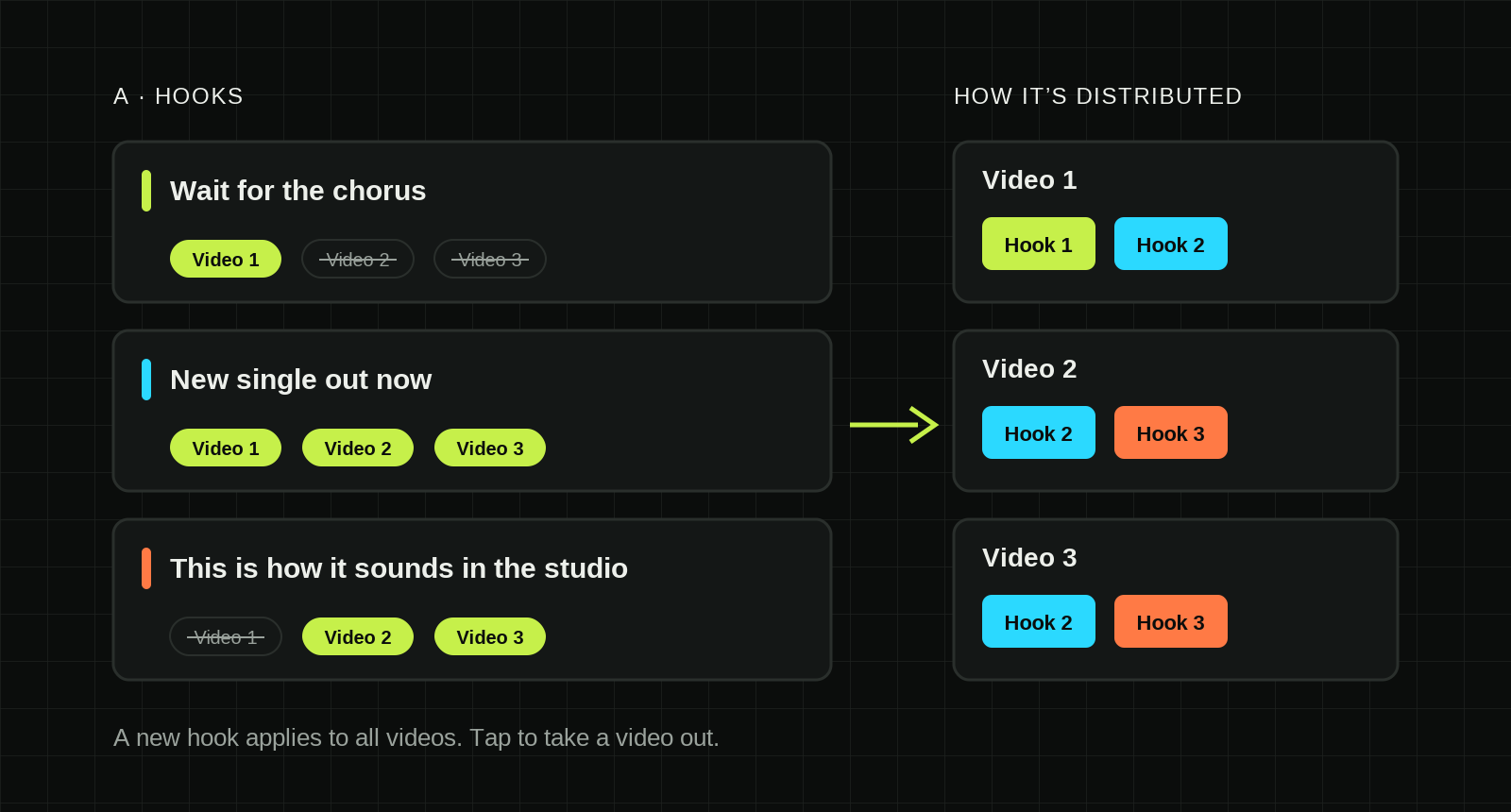
Assign a hook to a video
- Upload at least two videos. In campaigns, the chips appear from the second video.
- Tap the chips. A coloured chip means the hook appears on that video. A crossed-out chip means it doesn’t. A new hook starts out on all videos.
- Watch for the note. If a video no longer has a hook, a yellow warning appears. Its versions then stay without text. Before you start, reelbatch asks once more.
- Check the distribution. At the bottom, under “How it’s distributed”, you see how the hooks are spread across the versions. Later, the order page shows which videos each hook is for.
Single orders have no chips. There, reelbatch spreads all hooks across all videos, as before.
One hook for all, one per video
A general hook like “New single out now” fits every video. Add one hook per video that describes exactly what people see. In your review you can then compare whether the general or the matching hook is watched for longer. How to compare fairly is covered in test trial reels.
Hook ideas for one specific video
In the 💡 Hook ideas block you get suggestions and pick them by swiping. New: the “For” choice and a field for context.
Get hook ideas for one video
- Tap “Get hook ideas”. The button sits below your hooks.
- Choose under “For”. “All videos” or one specific video, for example “Video 2 (studio.mp4)”. This choice is only there in campaigns.
- Add context (optional). Briefly describe what happens in the video, for example “chorus, studio scene, close-up of the guitar”. The more specific, the better the ideas fit. reelbatch remembers the context for each choice.
- Pick tone, number and language and tap “Generate ideas”.
- Swipe. Right to keep, left to discard. What you keep for one video shows up at the top as a hook with only that video’s chip. With “All videos”, the idea applies to all of them.
In a single order you only see the context field. The ideas then apply to the whole order.
Find old hooks again
As soon as you type two letters into a hook line, reelbatch shows hooks below it that you used before or kept from hook ideas. One tap puts the hook into the line. Hooks that start with your letters come first, then the ones you use often, then the newest.
You only ever see your own hooks. If you work with brands, the hooks of the selected brand come first. More on that in edit and copy captions, which also covers a brand’s “Style & tone”.
Frequently asked questions
Can I assign a hook to a different video later?
Yes, as long as you have not started the order yet. Just tap the chips under the hook again. Once the order has started, the versions stay as they were rendered.
What happens if a video has no hook at all?
Its versions stay without text, all other videos get their hooks as usual. reelbatch points this out beforehand so it doesn’t happen by accident.
Is the new editor part of the Basic plan?
Yes. Adding hooks one by one, assigning videos, searching old hooks and hook ideas are part of every plan. In Basic the allowance for hook ideas is smaller than in Standard. The numbers are on the pricing page.
Do hooks or hook ideas use up trial reels?
No. Hooks and hook ideas never use up trial reels from your allowance.


