Plan a campaign: reels per day, duration and distribution
Plan a campaign in reelbatch: set reels per day and duration, find the right number of videos, read the calendar and use “Shuffle again”.

You plan a reelbatch campaign with two values: reels per day and duration in days. From these, reelbatch works out how many trial reels you need and how many videos make sense. After uploading, you see the finished plan as a calendar and can shuffle it with “Shuffle again” before you start. Here we explain every slider, every number and every message.
Series · part 3 of 6Getting started with reelbatch
This is part 3 of the “Getting started” series. Whether a campaign is the right mode for you is covered in part 2: single order or campaign.
Step 1: set reels per day and duration
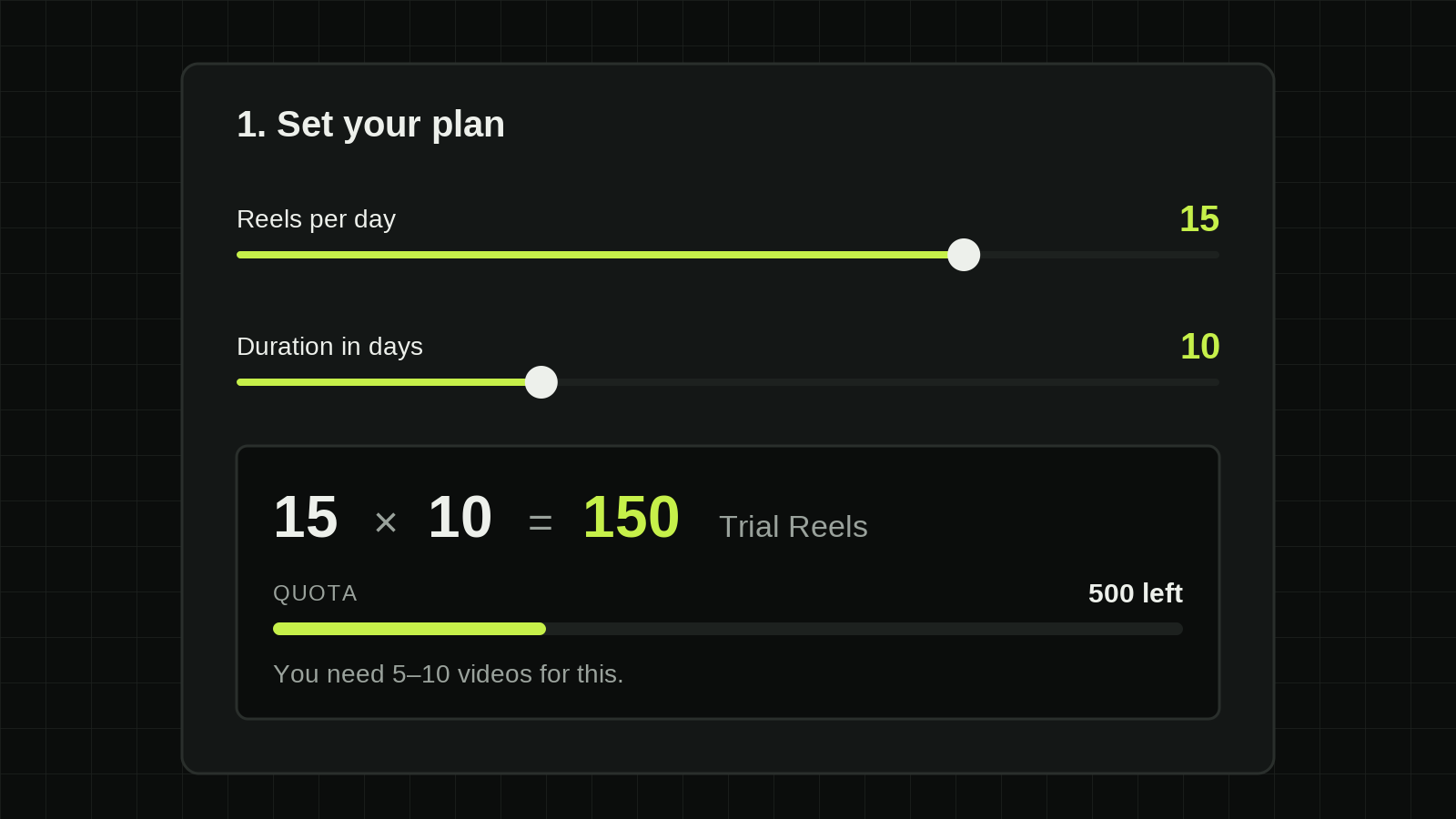
At the top of the “New campaign” form there are two sliders:
- Reels per day: 1 to 20. That is how many trial reels you post on each campaign day.
- Duration in days: 1 to 30. That is how many days the campaign runs.
You can drag the sliders or use − and + to change them one step at a time. Below, the calculation updates live, for example 15 × 10 = 150 Trial Reels, together with your remaining quota as a number and a bar.
A campaign has at least 5 Trial Reels. The only upper limit is your remaining quota.
What happens if the quota isn’t enough?
reelbatch adjusts the other value and tells you in a message:
- You raise reels per day: the duration drops to the longest that still fits. For example: “Your quota is enough for at most 23 days with 20 reels per day. We adjusted the duration.”
- You raise the duration: the reels per day drop accordingly.
This way you can never start a campaign that exceeds your quota. If you want both values high, you need more quota. Which plan fits which schedule is covered in which plan fits?.
Which rhythm is realistic?
Choose a number of reels per day that you will actually post every day. 5 Trial Reels on 30 days teach you more than 20 on three days followed by a break. Thoughts on finding your rhythm are in how often to post reels.
Step 2: find the right number of videos
Below the calculation you see how many videos your plan needs, for example “You need 5–10 videos for this.” The range follows three rules:
- A video that appears on a day shows up there two or three times in different versions. So you need at least a third as many videos as reels per day.
- No video gets more than 30 versions. Large plans therefore need more videos.
- Around 15 versions per video is the target. That sets the upper limit.
| Plan | Trial reels in total | Videos |
|---|---|---|
| 5 per day, 30 days | 150 | 5 to 10 |
| 15 per day, 10 days | 150 | 5 to 10 |
| 10 per day, 7 days | 70 | 4 |
| 20 per day, 30 days | 600 | 20 to 40 |
Illustration with sample numbers. Actual results vary.
If you upload more videos than the plan can use, the form tells you and the start button stays locked. Campaigns are built on a few strong videos. For many different videos, use a single order.
Which videos work?
MP4, MOV or M4V, up to 150 MB and 3 minutes per video. Vertical (9:16) suits reels best. Landscape videos stay landscape, and the form then says so next to the file. Ideally, choose videos your community already liked.
Step 3: read the calendar
As soon as all uploads are finished, “Your plan as a calendar” appears. For each day it shows:
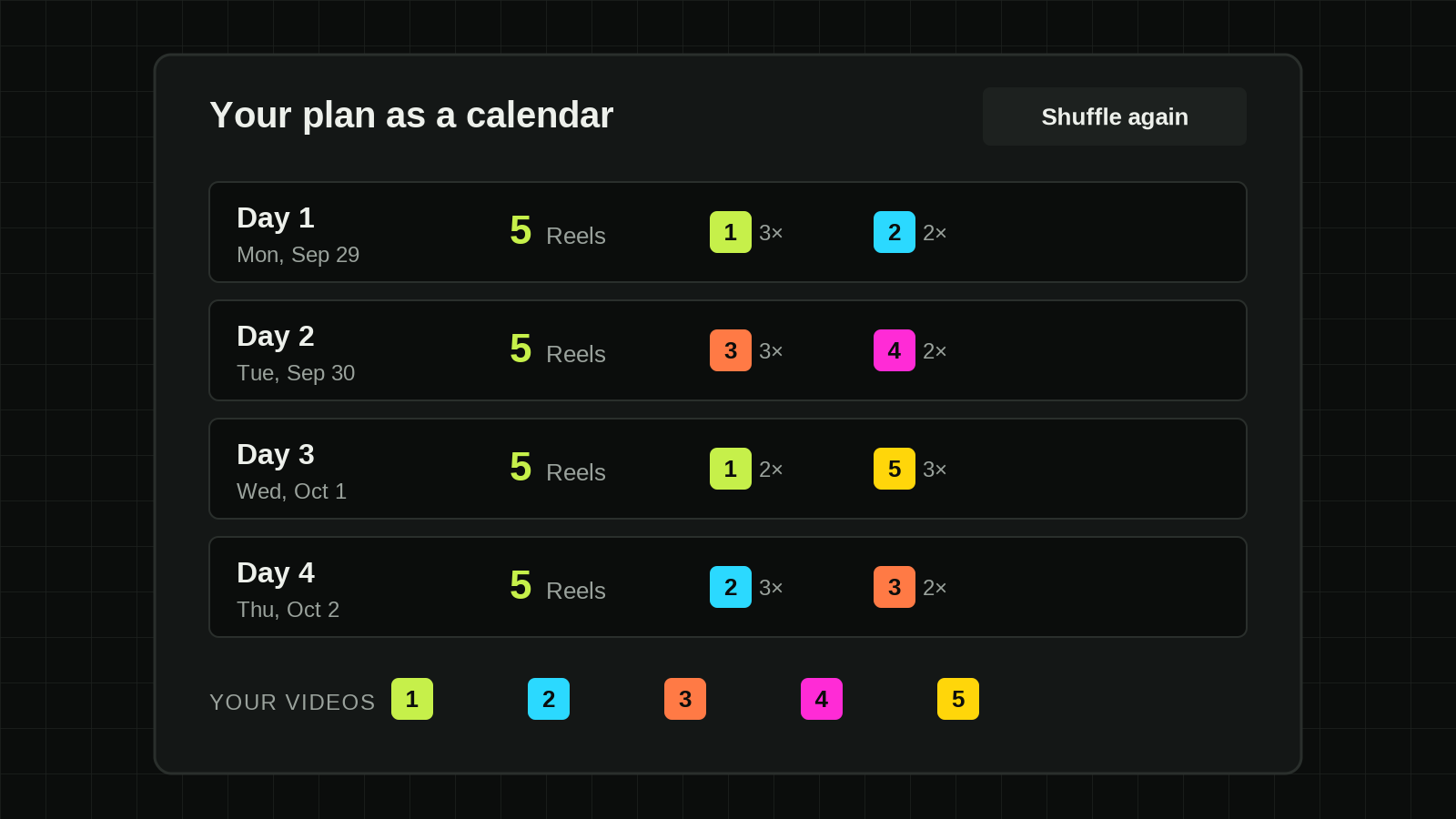
- Day and date: day 1 is the day your first folder is ready, usually today. The dates are therefore estimates.
- Number: how many trial reels are due that day.
- Coloured numbers: which videos appear that day. “3×” means three different versions of that video.
- Legend: below the calendar you see which number belongs to which file name and how often each video appears in total.
A sentence at the top sums up how many versions each video gets and whether a video appears on two consecutive days. reelbatch avoids that wherever it can. With only a few videos it can’t always be avoided completely, and those spots are marked. For long campaigns, expand the rest with “Show all days”.
Step 4: “Shuffle again”
If you don’t like the distribution, for instance because your strongest video only appears on day three, tap “Shuffle again” (Anders verteilen). reelbatch creates a new plan following the same rules. You can repeat this as often as you like.
Important: exactly the plan you saw last is used when you start. You can look it up later on the order page under “Posting plan”.
Step 5: account, text, strength, start
Finish and start your campaign
- Enter the account (optional). For example @yourname. It is only used to label the folders and helps if you run several accounts.
- Text on the video (optional). Tick the box if you want to add hooks. Everything about it is in add text to your reels.
- Choose the strength. Level 2 is preselected and the best choice to begin with. More in part 4: strength levels.
- Check the summary. The box above the button sums up your order.
- Tap “Start campaign”. Day 1 is created first. You get an email when it is ready and a second one when all other days are done.
One-time consent for paid plans
Before your first order in a paid plan, the form asks once for your consent regarding the right of withdrawal. The link next to it shows the details.
After the start
The order page shows the progress: queued, rendering, day 1 ready and finally done. You don’t need to keep the page open. How to open the folders and save the videos is covered in part 5: download your videos.
You can run several campaigns at the same time, for example one per account, as long as your quota lasts. Your overview shows how many campaigns are running below the quota.
Frequently asked questions
Can I change a running campaign?
Settings like reels per day, duration or videos are fixed once you start. If you need a different plan, start a new campaign. The folders already created stay available until they are deleted automatically after 30 days.
Why is “Start campaign” greyed out?
Usually the number of videos doesn’t match the plan, an upload is still running, or the campaign would have fewer than 5 Trial Reels. The message above the button tells you what’s missing. With text on the video, a distribution setting may not fit either, and the green “How it’s distributed” box explains why.
Do I have to post at the same time every day?
No, reelbatch only gives you the videos for each day. You decide when to post. If you like, an email reminds you on every campaign day, and you choose the time in your overview under “Daily reminder”.
What does day 1 in the calendar mean?
Day 1 is the day your first folder is ready. Since that usually happens shortly after the start, it is normally today. The dates of the other days count on from there.


