Add text to your reels: the text editor step by step
Add text to reels with the reelbatch text editor: looks, position and size, alignment, colour picker, safe zone, brand template and distribution explained.

With the text editor you add hooks and other text straight into your versions. You write your text, choose a look and adjust it on a preview of your own video. The step is optional and costs no extra quota.
Series · part 3 of 6Text on video
This is part 3 of the “Text on video” series. Here you get the complete guide to every button of the editor.
Depending on your plan
Not every button is part of every plan. Which looks, colours and settings you see depends on your plan. The editor itself shows what your access includes: anything that does not appear there is not part of your plan.
Overview: four blocks
The “Text on the video” step is part of both the campaign form and the single order form. Tick “Add text to the video”, and four blocks open:
| Block | What you do there |
|---|---|
| A · Text | Type your texts, reuse saved texts, get emoji suggestions depending on your plan |
| 💡 Hook ideas | Depending on your plan: get ideas and pick them by swiping, see hook ideas by swiping |
| B · Look | Choose a style, depending on your plan compare several |
| C · Position, size & colour | Adjust on the preview, depending on your plan save as a brand template |
| D · Distribution | Depending on your plan, decide which text appears how often and where |
Block A: write your texts
Enter texts
- One text per line. Each line is its own text, up to 150 characters. How many different texts you can use per order depends on your plan.
- Highlight a word. Put a word between asterisks, for example
Wait for the *chorus*. In looks with an accent colour it appears in colour. - Get emoji suggestions (optional, depending on your plan). Tap “Suggest matching emojis”. You get one suggestion per text, deliberately none for serious topics. Your text only changes when you tap “Apply” or “Apply all”.
- Use saved texts. Under “Use saved texts” you find texts from earlier orders. One tap adds them at the bottom.
New: hooks line by line
In the new text editor each hook has its own line (“+ Hook”), reelbatch suggests your earlier hooks as you type, and in campaigns you assign each hook to single videos. Step by step in plan hooks per video.
Below the field, reelbatch counts how many texts you’ve entered. Which hooks can work is shown in 10 hook patterns and hook formulas by niche.
Block B: choose a look
Tap a tile. The tiles show your first text in each style. All looks use freely licensed fonts. Depending on your plan you get all of these looks or a selection:
| Look | What it looks like |
|---|---|
| Classic | White text with a black outline, the familiar short-video look |
| Label light | Black text on white rounded bars, one per line |
| Label dark | White text on semi-transparent dark bars |
| Highlighter | Dark text with a yellow highlighter |
| Accent word | Outlined text with one word in yellow (choose it with *word*) |
| Subtitles | Simple subtitles at the bottom with a soft shadow |
| Colour box | White text on a bold coloured box |
| Big & bold | Large poster type in capitals with a hard shadow |
| Headline | Narrow capitals on a yellow bar |
| Typewriter | Typewriter font on a note, left aligned |
| Neon | Glowing script with a pink glow |
| Elegant | Serif font with a soft shadow, calm and refined |
Depending on your plan, “Compare several looks” lets you pick several looks that alternate across the versions. Your own brand templates come first.
Block C: position, size, alignment, colour
The preview shows your text on a still frame of your own video. Which of the following settings you see depends on your plan. Use ‹ and › to flip through your texts. With several videos, choose which one provides the background. On a phone the preview stays visible while you adjust.
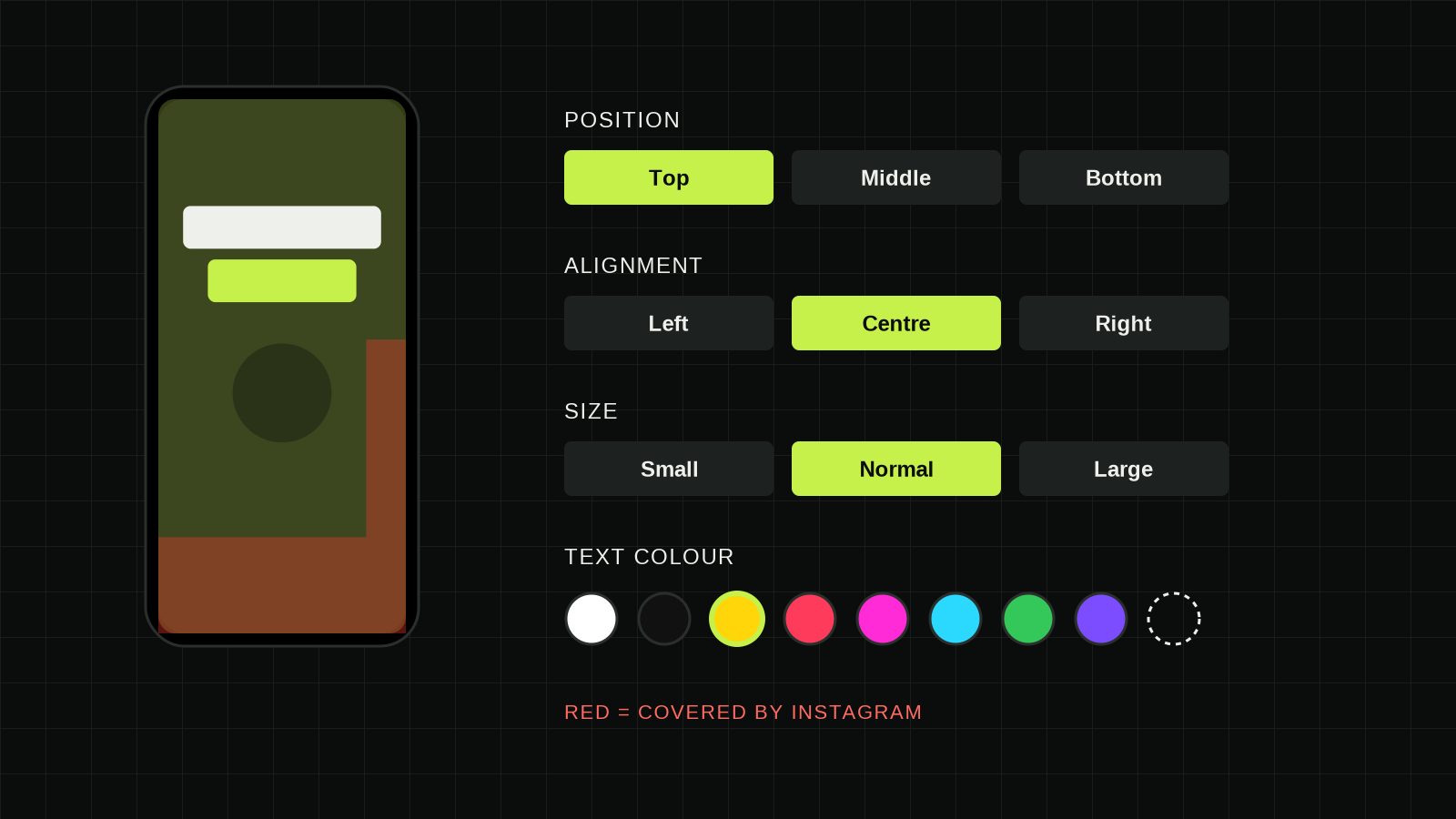
- Position: top, middle or bottom by button, finer with the slider.
- Alignment: left, centre or right. “Centre” means centred in the video. The edges Instagram covers stay free in any case.
- Size: small, normal or large by button, finer with the slider.
- Text colour and second colour: tap a swatch. Depending on the look, the second colour is the background, the outline or the highlighted words.
- Your own colour: tap the multicoloured circle. A colour picker opens: in the field you choose saturation (left/right) and brightness (up/down) with your finger or mouse, below it there are sliders for hue, saturation and brightness and a field for the hex value, for example
#1E90FF. “Done” closes it again. Semi-transparent backgrounds stay semi-transparent. - Capitals: writes the whole text in upper case.
- “Show areas covered by Instagram/TikTok”: colours the spots in red where the app places buttons, the profile name and the caption over the video. Why that matters is explained in the Instagram reels safe zone.
- Reset: restores the look’s default values.
Save a brand template
Depending on your plan you can keep your setup as a template: happy with it? Tap “Save as brand template”, enter a name (up to 40 characters) and tap “Save”. From then on the template sits at the front of the looks in every order, with colours, position, size and alignment. You can delete it with the × on the tile.
Block D: distribution
Here you decide how the texts are spread across your versions. Which settings exist depends on your plan:
| Setting | Options |
|---|---|
| Order | Mixed (randomly distributed) or in sequence (text 1, 2, 3, 1, 2 …) |
| How often may the same text appear? | As often as needed, or at most 1, 2, 3, 5, 10 or 20 times in total |
| Different texts per video | All texts or 1 to 10 different ones |
| Never the same text twice on one day | Campaigns only, as a checkbox |
| Versions without text (for comparison) | None, 10 %, 20 %, every 4th, every 3rd or every 2nd |
| How long is the text shown? | Whole video or the first 3, 5 or 8 seconds |
| Where do you post? | Reels and ads (more margin, safe) or regular reels only (text may sit lower) |
| Each version slightly different | Shifts position and size minimally, the text always stays straight (on by default) |
Under “Adjust for individual videos” each video gets its own rule: “All texts”, “Only certain texts” or “No text”, plus its own limits. That way a song snippet can get only the music hooks and a studio clip no text at all.
The green “How it’s distributed” box
At the very bottom reelbatch shows live how often each text appears. If a setting doesn’t fit, for example too few texts for “never twice on one day”, it explains in plain words what to change, and the start button stays locked until it fits.
After the start, the order page shows under “Details” which look was used and how often each text appears. That helps later with the review.
Check your spelling
The text ends up in the video exactly as you type it. Check it in the preview before you start. A corrected version means a new order.
Frequently asked questions
Does text on the video cost extra quota?
No. A version with text counts as one trial reel, just like a version without text.
Can I upload my own fonts?
Yes, from the Standard plan (and in the free trial). In C “Position, size & color”, go to Font and tap “Custom fonts” to upload a font as TTF or OTF, up to 5 MB per file and up to 10 fonts. Only upload fonts you are allowed to use (licence). On Basic you use the freely licensed fonts of the looks.
Why isn’t my text right at the edge?
reelbatch keeps text out of the areas Instagram covers with buttons and the caption. With “Where do you post?” set to regular reels only, the text may sit a little lower.
Can I change texts afterwards?
No, the text is rendered into the video. For different texts, start a new order. You’ll find your previous texts there under “Use saved texts”.


