Captions included: edit captions and copy them from your download folder
Edit captions in reelbatch: captions with hashtags for every order, adjust them before posting, copy them in the download folder, with your brand’s style.

New since version 0.6.1. All news in the app
reelbatch writes matching captions with hashtags for every order, and you take them straight from the download folder. Next to each video you see its caption with a button to copy it. Before that, you edit every caption on the order page until it sounds like you. When you post, you just open the folder, save the video and paste the caption.
A caption is the description below your reel. With trial reels it is mostly seen by people who don’t follow you yet. A clear first line and a few fitting hashtags help them understand what it is about.
In every plan
Captions are part of every plan, Basic and the trial included. How often reelbatch writes captions for you per month depends on your plan and is shown on the pricing page. One creation covers a whole order. Editing by hand is never limited.
Switch captions on
Get captions for an order
- Open “Captions” in the form. In the campaign or single order form you find the Captions section. Tick “Create captions with hashtags”.
- Say briefly what it is about (optional). For example “new single ‘Nightlight’ out Friday”. The more specific, the better the captions fit. Your hooks from “Text in video” are taken into account too.
- Pick your settings. Tone (for example Casual or Professional), language, your fixed hashtags, how many different captions (1 to 10) and, if you like, a call to action such as “Link in bio”.
- Start the order. The captions are written in the background, usually in under a minute. Your order never waits for them.
reelbatch remembers your choice for the next order. You can also get captions later on the order page with “Create captions”.
Edit captions before posting
On the order page you find the Captions card. There you see each caption with its text and hashtags in separate fields.
Edit a caption
- Open the order page and scroll to the Captions card.
- Change the text. Write the first line so that it sparks curiosity and sounds like you. Shorter is almost always better.
- Check the hashtags. The Hashtags field holds up to 5. A few that fit exactly are better than many general ones. Why five is the limit is explained in Hashtags on Reels.
- Tap “Save changes”. The edited captions apply right away to your versions and to the captions.txt in every download folder.
If you only change the text, the assignment stays the same: each version keeps its caption. Which caption appears on which video, you set under “For:”. How that works and how to have your own caption optimised is covered in captions per video. The rules for captions apply to your edits as well, for example no bait like “Like if …”. Which words belong in the caption, and what Instagram says about them, is covered in search keywords in the caption.
Read them yourself
Read every caption once before you post. Are the name, date and title right? Does the text promise anything the video doesn’t deliver? You remain responsible for your posts.
Copy in the download folder
Paste the caption when posting
- Open the folder for the day. You find the link in your email and on the order page.
- Save the video. On an iPhone: tap the video, then “Share” and “Save Video”.
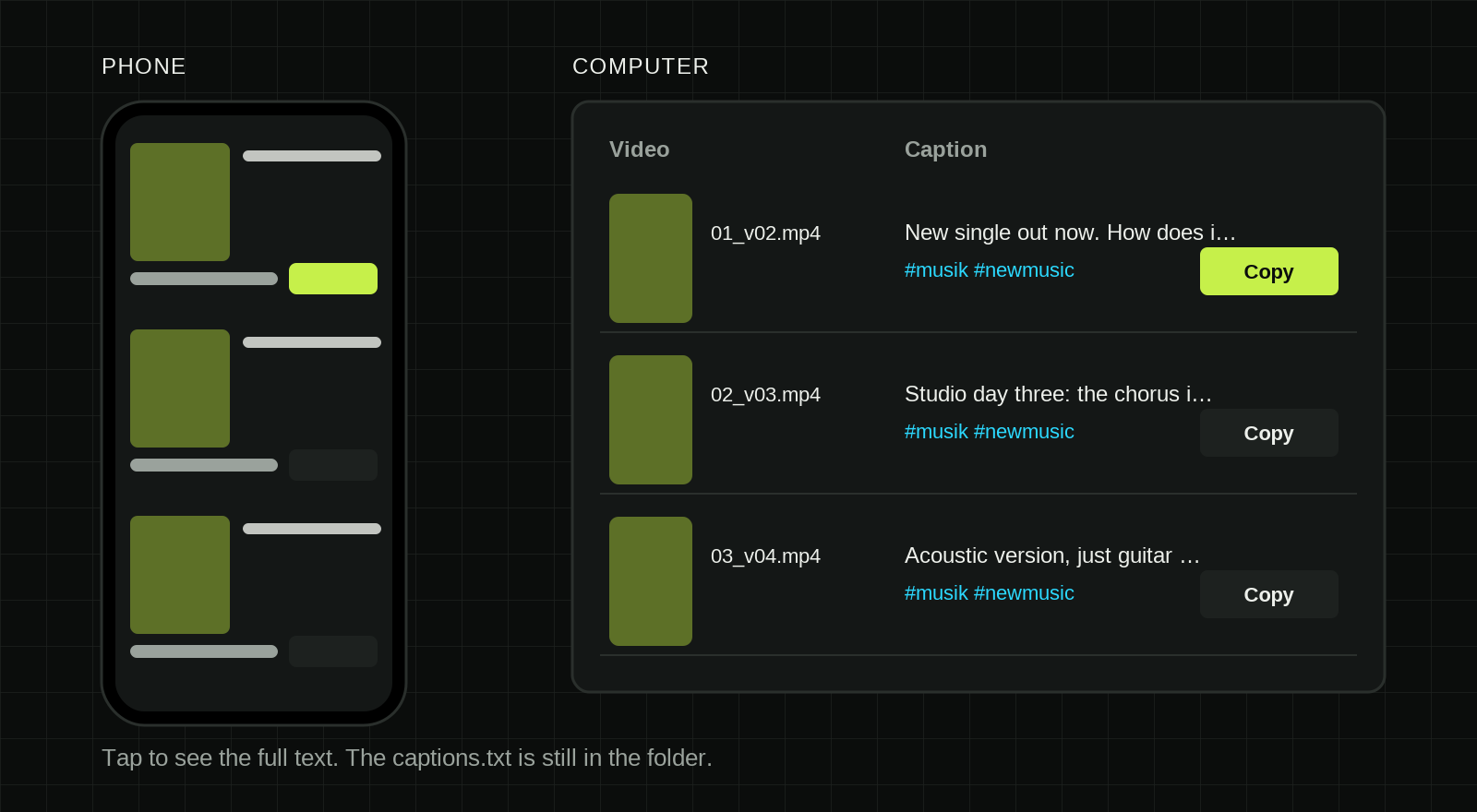
- Tap “Copy”. The button sits right next to the video’s caption. Tap the text first to see all of it.
- Paste it in Instagram. When posting, tap the description field and paste.
On a phone the caption sits below the video, on a computer in its own column next to it. The captions.txt is still in the folder and in the ZIP if you prefer everything at once. How to find folders and the ZIP is covered in download your videos.
Brands with “Style & tone”
From the Standard plan you can create brands: Standard 1, Double 2, Agency 5. That helps when you run several projects or accounts, for example your band and your solo project.
Set a brand’s style and tone
- Open “Brands” and create or edit a brand.
- Fill in “Style & tone” (optional). Up to 300 characters, for example “casual, short sentences, humour, no emojis”.
- Select the brand. Choose the brand in the switcher at the top, then start the order or assign it to the brand.
Captions and hook ideas then follow the brand’s style and tone. The brand name and Instagram name are passed along as a hint. Hook ideas also only learn from the hooks you kept for that brand, so two projects don’t get mixed up. How to plan hooks per video is covered in plan hooks per video.
Frequently asked questions
Do captions use up trial reels?
No. Captions never use up trial reels from your allowance. How often reelbatch writes them per month is shown on the pricing page.
What happens when my captions for the month are used up?
Then reelbatch writes no new captions until your next plan month. Your videos are not affected, and you can keep editing and copying existing captions.
Can I write a caption entirely myself?
Yes. Simply replace the text in the field with your own and tap “Save changes”. You adjust the hashtags in the field below.
Are brands part of the Basic plan?
No, brands start with Standard. In Basic you use captions and hook ideas as usual, just without a brand.


