Expert settings: how to control what reelbatch changes in your videos
Expert settings in reelbatch: switch zoom, speed, colour, effects and sound on or off one by one. All 10 switches explained, with typical cases.

In the expert settings you decide what reelbatch changes in your versions. Each of the 10 changes has its own switch there, from zoom and speed to hue and film grain to volume and tone. Everything starts switched on. Whatever you switch off stays as in the original in every version of that order. At least one change always stays on.
The switches are meant for cases where one detail of your video has to stay exactly as it is: a song at its original tempo, sound without any change in tone, a specific first frame, a brand colour. For everything else the default works well.
Depending on your plan and button names
You can switch changes on and off individually from the Standard plan up. The menu is also part of the free trial. On the Basic plan you see it marked “from Standard”, and all changes stay on. We use English names in this guide. If you use the app in German, the German label is shown in brackets where it helps you find it.
What the strength does
Every version gets its own random mix of small changes. The strength (level 1, 2 or 3) sets how far these changes may go: level 1 is barely visible, level 2 visible but natural, level 3 clearly noticeable. If you’re unsure, choose level 2. Everything about it is in strength levels 1 to 3.
The switches decide which changes happen at all. In short: the strength says how much, the switches say what. The strength applies to everything that is on. Whatever is off is left out completely at every level.
Your content, your message, your edit and your text always stay the same. What you get are light variations of the same video for your trial reel tests.
The 10 switches in 4 groups
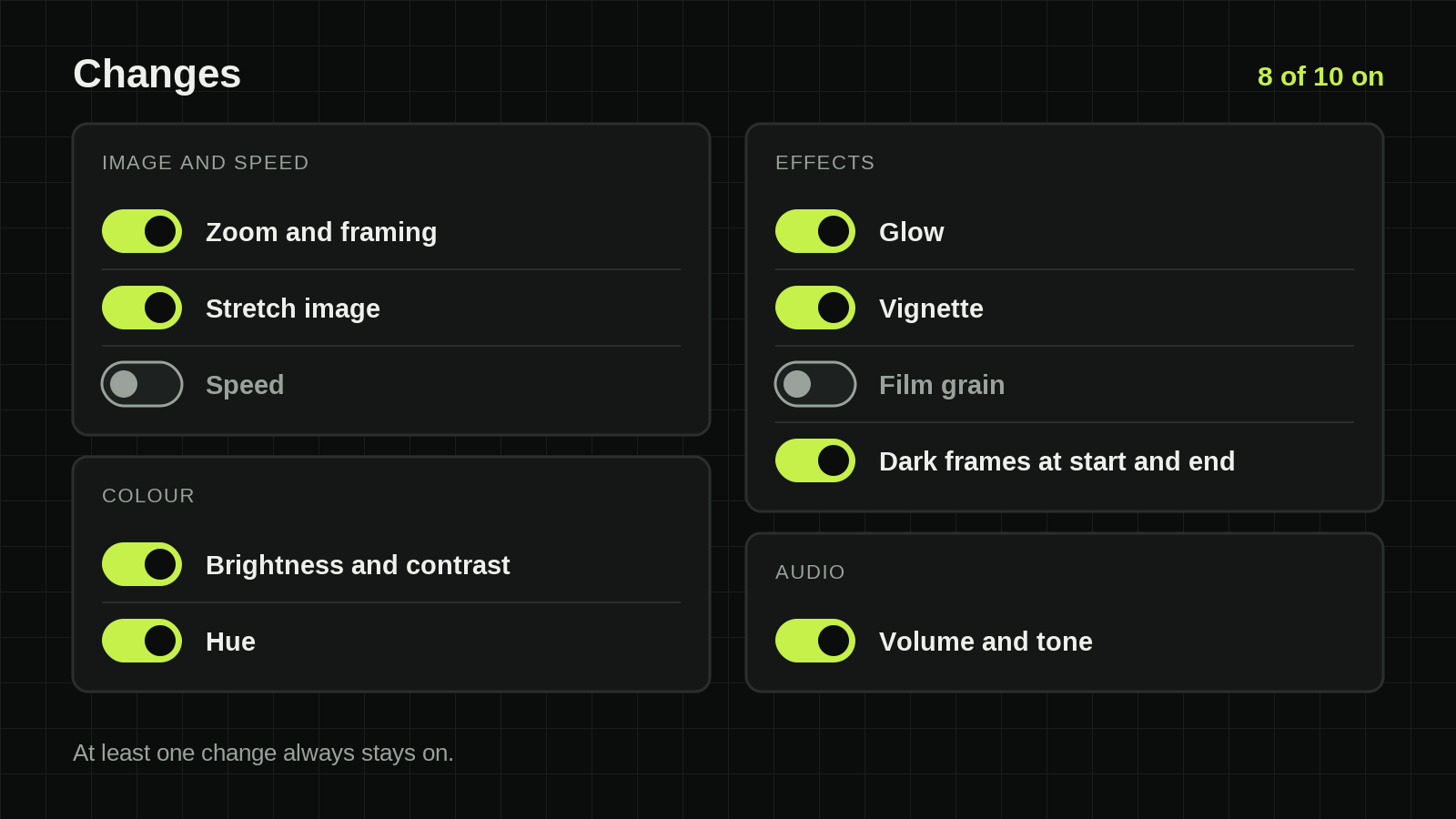
Image and speed
- Zoom and framing (Zoom und Bildausschnitt): zooms in slightly, sometimes a little out (the edge is then mirrored), and shifts the crop a little.
- Stretch image (Bild strecken): stretches the image minimally in width or height.
- Speed (Tempo): plays each version a few percent faster or slower, and the sound follows.
Colour
- Brightness and contrast (Helligkeit und Kontrast): changes brightness, contrast and saturation slightly.
- Hue (Farbton): shifts the colours slightly, for example a little warmer or cooler.
Effects
- Glow (Leuchten): adds a soft shimmer to bright areas.
- Vignette (Vignette): darkens the edges of the image slightly.
- Film grain (Filmkorn): adds fine image noise, like analogue film.
- Dark frames at start and end (Dunkle Bilder am Anfang und Ende): adds very short, dark single frames at the very start and end, together only fractions of a second.
Audio
- Volume and tone (Lautstärke und Klang): changes volume and tone minimally.
Purely technical things such as image quality have no switch. They stay equally high in every version.
Typical cases: what should you switch off?
Music and dance: speed off
With “Speed” each version runs a few percent faster or slower, while picture and sound stay in sync. If your video has to stay exactly on the beat of the original, switch speed off. Every version then has the length and tempo of the original. This matters when your song should be heard at exactly its original tempo, or when a choreography has to match a sound you add in Instagram.
Sound as in the original: volume and tone off
For vocals, interviews, voice-overs or a cleanly mixed song, switch “Volume and tone” off. Volume and tone then stay as in the original. As long as “Speed” is on, the sound follows the speed. If it should match the original in tempo too, switch both off.
First frame as cover: dark frames off
“Dark frames at start and end” adds very short, dark single frames at the very start and end. If the very first frame of your video matters, for example because it should serve as the cover, switch this change off. Every version then starts with the first frame of your original.
Brand colours: hue off
For logos, products and brand colours, switch “Hue” off. Your colours then keep their hue, so a brand blue doesn’t turn warmer or cooler. Brightness, contrast and saturation still change slightly. If exact colours matter, also switch off “Brightness and contrast” and choose level 1.
Switch off as little as possible
The more changes are on, the more clearly your versions also differ from each other. So only switch off what really has to stay the same in your video, and leave the rest on.
How to switch changes off
Turn individual changes on and off
- Start an order. In your overview, open “New campaign” or “Single order” and upload your videos.
- Open the expert settings. Scroll down to the strength setting, tap “Expert settings” and then “Changes”.
- Tap the switches. Green means on, grey means off. At the top right you see how many are on, for example “8 of 10 on”. “Turn all back on” resets everything.
- Start. As usual with “Start campaign” or “Create versions”. Your choice applies to all versions of this order.
- Check later. On the order page, “Details” shows what was off, for example “Changes off: speed, film grain”.
Using the app in German?
There the menu sits below Stärke der Veränderung: tap Experten-Einstellungen and then Veränderungen. The reset is called Alle wieder an, and the order page shows for example Veränderungen aus: Tempo, Filmkorn.
Good to know
- At least one stays on. If you switch off the last switch, it turns back on with a short note. Otherwise every version would look like the original.
- Your choice is remembered. For your next order, the choice from your last order is already set, and the expert settings are then open. If you start a new round from a finished order, the choice of that round applies.
- Same quota. Every finished version counts as one trial reel, however many changes are on.
- Available from the Standard plan. Standard is available from €14.99 (beta price) a month, Double at a higher fixed monthly price. Agency and Enterprise are available on request. You can book Standard and Double directly. The beta price applies to your first 30 days, then the regular price. All plans are on the pricing page.
What the switches can’t do
To be honest: the switches are about looks and sound, not a lever for reach. They decide how your versions differ from the original, nothing more. How often Instagram suggests a trial reel is decided by the platform alone, and how people respond is decided by your content.
The biggest difference between two versions is one you make yourself anyway: a different hook. How that works is covered in add text to your reels. Why it makes sense to test a good video in several versions is explained in create reel variations.
Try it yourself
The expert settings are part of the free trial. You don’t need payment details and you don’t take out a subscription. Try it free
Frequently asked questions
Does my choice apply to all videos in an order?
Yes. The switches apply to all versions of all videos in that order. If one video needs a different choice, start a separate order for it.
What happens if I switch everything off?
That isn’t possible. At least one change stays on, otherwise every version would look like the original. If you switch off the last switch, it turns back on with a short note.
Does the strength affect changes that are off?
No. Whatever is off is left out completely at every level. The strength only applies to what is on.
Does switching something off use more quota?
No. Every finished version counts as one trial reel, however many changes are on or off.
Where can I see later what was off?
On the order page under “Details”, for example “Changes off: speed, film grain”. If everything was on, nothing is shown there.


