Captions per video: assign them and optimise your own
Captions per video in reelbatch: assign your own captions to single videos, get caption ideas for one video and optimise or rewrite your caption with AI.

New since version 0.7. All news in the app
Captions per video means: you decide which caption belongs to which of your videos, just like with hooks. The caption about the rehearsal room only ends up under the rehearsal room video, the caption about the studio only under the studio video. On top of that, you get caption ideas for one specific video and let the AI optimise a caption you already wrote or rewrite it into several variants.
How captions work in general, how to edit them on the order page and copy them in the download folder is covered in edit and copy captions. This guide is about assigning captions to videos and optimising them.
In every plan
Assigning captions and “Optimise or rewrite your own caption” are part of every plan, Basic and the trial included. Writing, assigning and editing your own captions is never limited. Every “Get caption ideas” and every tap on “Optimise” or “Rewrite” counts as one caption creation with AI. How many you get per month is shown on the pricing page.
What’s new?
| Before | Now |
|---|---|
| The AI writes captions for the whole order | You write your own captions and pick the videos for each one |
| Any caption could end up on any video | Each version only gets captions that apply to its video |
| Caption ideas only for all videos | Caption ideas for one specific video, with a short context |
| Rewording your own caption by hand | “Optimise” creates a stronger version, “Rewrite” several variants |
Why captions per video save time
In a campaign you usually upload several videos: a live clip, a studio scene, a video with a guitar. A general caption fits all of them, a specific caption only one. Until now, you checked while posting whether the caption matched the video and changed it by hand. Now the matching caption is already in the download folder, right next to the right video.
- Less fixing while posting. Save the video, tap “Copy”, paste. No more checking whether “Studio day three” sits under the live video.
- More specific writing. A caption that describes what people see is easier to understand for people who don’t know you yet than a general sentence.
- Start without AI allowance. If your own captions cover all videos, they are ready the moment you start. No AI and no caption allowance needed.
- For agencies and teams. Several products or songs in one order? Each caption stays with its video, even when someone else posts.
Add your own captions and assign them to videos
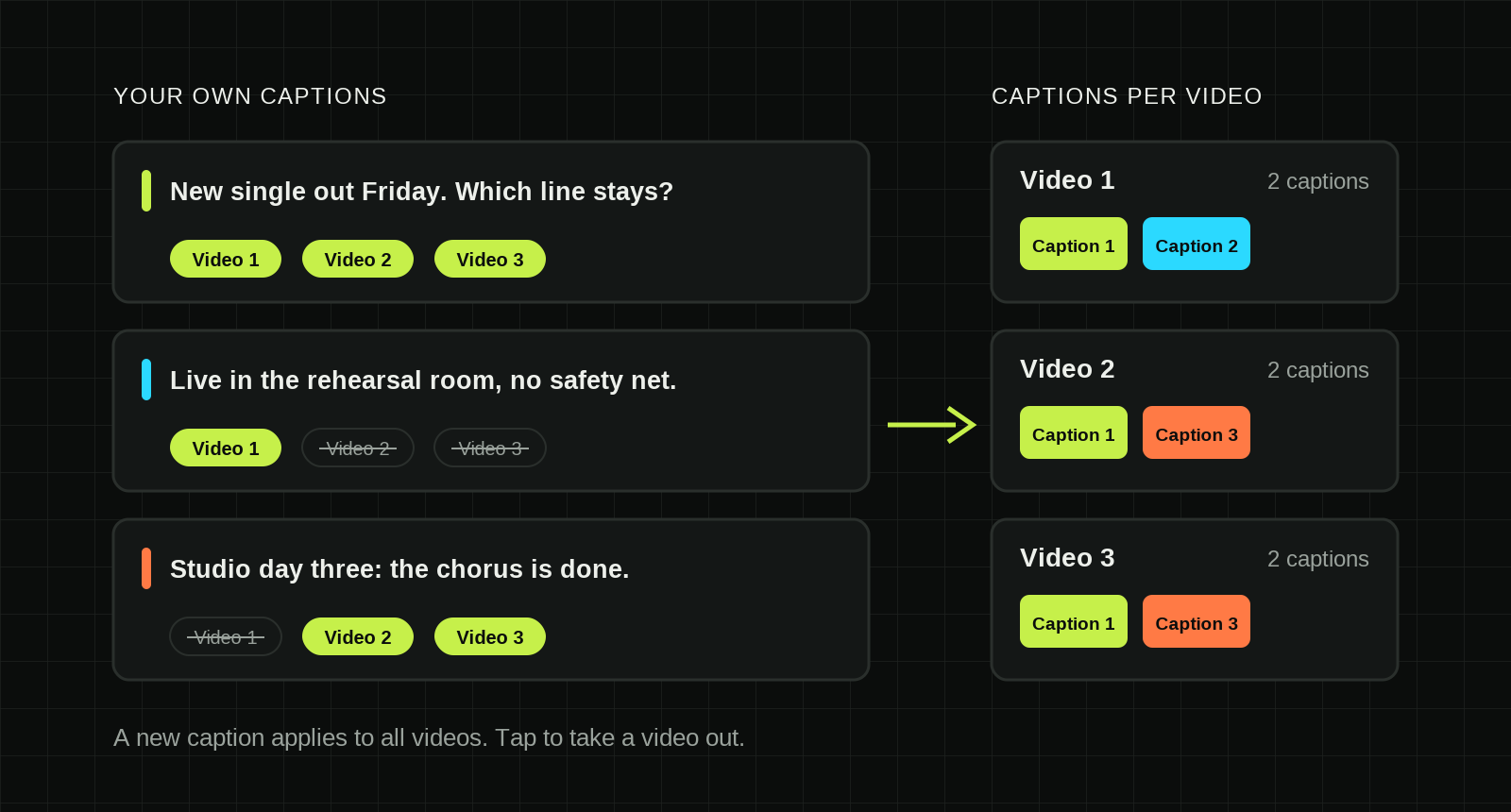
Assign captions to single videos
- Create an order. Open New campaign or Single order and upload two or more videos.
- Turn on captions. In the Captions section, tick “Create captions with hashtags”.
- Write your own caption. Under Your own captions, tap “+ Caption” and write the text. Below it you can add hashtags for this caption only. Your fixed hashtags and a custom call to action from your settings are added automatically.
- Pick the videos. Under each caption you see the chips “Video 1, Video 2 …”. A new caption starts out on all videos. Tapping a chip takes that video out, “Select all” adds them all back.
- Check the overview. Below, you see how many captions each video has. If a video has none, a note appears.
- Fill the gaps (optional). The box “Videos without a caption of their own: the AI writes some when you start” is already ticked. If you untick it, those videos get no caption. reelbatch asks once more before you start.
- Start the order. Each version only gets captions that apply to all videos or exactly to its video.
You can add up to 30 captions of your own. If you reload the page by accident, your captions from earlier are back.
One caption for all, one per video
Write a general caption that fits every video, for example “New single out Friday”. Add one caption per video that describes what people see. That way each video gets at least two captions, and no caption repeats on the same video on the same day as long as there are enough.
Caption ideas for one specific video
Stuck on a video? The AI suggests captions, and you only keep what fits.
Get caption ideas for one video
- Pick a video. In the Caption ideas block, choose a video under “For”, for example “Video 2 (studio.mp4)”. With “All videos” the ideas apply to every video.
- Describe it briefly (optional). In the field “What’s this video about?” you write up to 300 characters, for example “chorus, studio scene”. The AI also uses your text under “What’s it about?” further up.
- Tap “Get caption ideas”. After a few seconds you see up to three suggestions. reelbatch filters out anything that breaks the rules first.
- Use or discard. “Use” adds the suggestion to your captions at the top, only for this video. “Discard” removes it. Nothing changes until you tap “Use”.
If your plan shows how many caption creations with AI you have left this month, you see it right there. If the AI isn’t available at the moment, you can still add your own captions.
Change the assignment after starting
You can still rearrange things after the start. That helps when you notice while posting that a caption fits another video better.
Change the assignment on the order page
- Open the order page and scroll to the Captions card.
- Change the boxes. Under each caption you see “For:” with the boxes Video 1, Video 2 …. Tick or untick them.
- Tap “Save changes”. reelbatch spreads the captions across your versions again and rewrites the captions.txt in the download folder.
- Fill videos without a caption (optional). If a video has no caption, tap “Let the AI write captions for videos without one”. The AI only writes for those videos, your other captions stay.
In the download folder, the “Caption” column shows a “–” for a video without a caption, and the captions.txt marks it as well. So you see straight away where something is missing.
Optimise or rewrite your own caption
Already have a caption, for example from an earlier post? Then the AI doesn’t have to start from scratch.
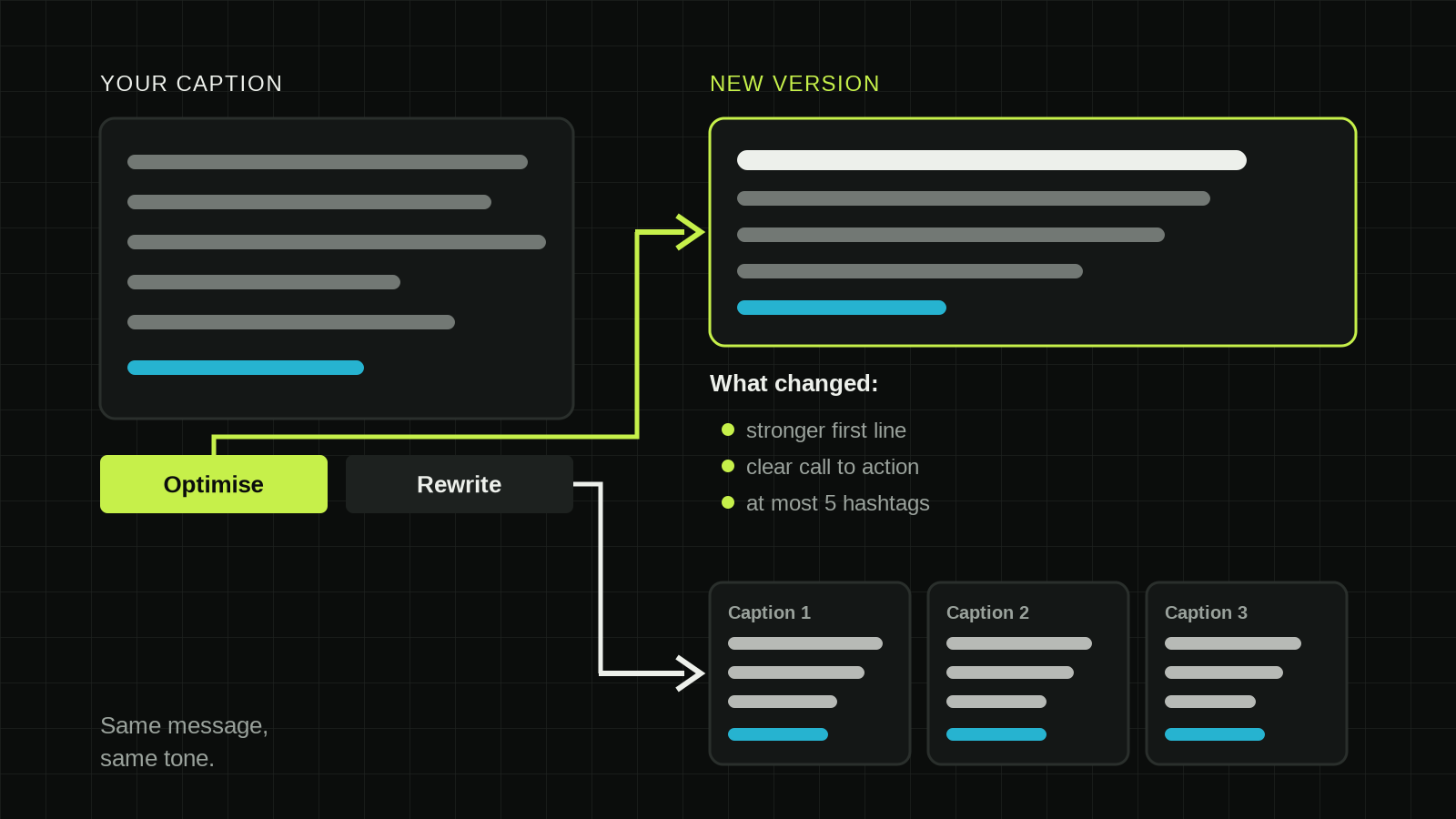
- Optimise creates an improved version: stronger first line, clear call to action, easier to read, at most 5 hashtags. Message, language and tone stay the same, nothing is made up.
- Rewrite creates 2 to 10 variants with the same message, at most as many as the chosen order has versions. That way not every version gets the same caption.
Improve your own caption
- Open the page. On your overview, open the “Captions” card and tap “Optimise or rewrite your own caption”. On an order page you find the same link next to “Already have your own caption?”, with the order already selected.
- Paste your caption. Copy your caption into the field “Your caption”, hashtags included if you like. Up to 2,200 characters are allowed, the same as on Instagram. How long a caption may be is explained in Instagram caption length.
- Tap “Optimise”. After a few seconds the new version appears below, with “What changed:”.
- Or get variants. Choose an order under “For which order?” and a number under “Variants when rewriting”, then tap “Rewrite”.
- Read and adjust. You can still edit every text. “Copy” always takes the current text.
- Apply it to an order (optional). Tap “Use” and confirm, and the result replaces the order’s previous captions. You land on the order page, and the captions.txt in finished folders is rewritten.
Captions you apply start out on all videos of the order. To assign them to single videos, change the boxes under “For:” on the order page afterwards, as described above. If you don’t have an order, choose “No order – just to copy”.
What it costs
Every tap on “Optimise” or “Rewrite” counts as one caption creation with AI. “Use” and “Copy” cost nothing. Neither uses any of your trial reels.
Common mistakes and how to avoid them
- Missing a video without a caption. Watch for the note below your captions and for the question before you start. Leave “the AI writes some when you start” ticked if you don’t want to write for every video yourself.
- The same caption everywhere. If a video has only one caption, all its versions get that caption. With “Rewrite” you quickly turn one caption into several variants.
- A first line that is too long. Instagram only shows about the first 125 characters, then “more”. reelbatch points this out while you type. Put the most important part first.
- Too many hashtags. Together with your fixed hashtags, at most 5 are allowed. A few that fit exactly are better.
- Promises in the caption. Promises about reach or followers and bait like “Like if …” don’t get through, not even in texts you edited by hand. Describe what people see in the video instead.
- Not reading it again. Read every caption once before posting. Are the name, date and title right? You stay responsible for your posts.
Frequently asked questions
Does the assignment also work in single orders?
Yes. As soon as you upload two or more videos in a campaign or a single order, the chips “Video 1, Video 2 …” appear under each caption of your own. With just one video, every caption applies to that video anyway.
What happens to videos without a caption?
If the box “Videos without a caption of their own: the AI writes some when you start” is ticked, the AI writes captions for those videos. If it isn’t, their versions get no caption. Later, on the order page, you can tap “Let the AI write captions for videos without one”.
What’s the difference between Optimise and Rewrite?
“Optimise” turns your caption into one single, stronger version. “Rewrite” creates several variants with the same message, so your versions don’t all get the same caption.
Does the AI change my message when optimising?
It shouldn’t. Message, language and tone stay the same, and nothing is made up. Under “What changed:” you see what’s different. Still, read the new version before you apply it.
Do my own captions cost anything?
No. Writing, assigning and editing your own captions is never limited. Only “Get caption ideas”, “Optimise”, “Rewrite” and captions the AI writes when you start count as caption creations with AI.


