AI hook generator: ideas that really know your video
The AI hook generator in reelbatch sees stills from your whole video, recognises the brand and suggests hooks that actually fit what happens.

New since version 0.7. All news in the app
For hook ideas in reelbatch, the AI now sees your whole video: it gets stills from the video and writes hooks that match what is actually on screen. Until now it only knew your text, meaning topic, context and type of account. Three more things are new: the AI suggests the matching brand, you can send a screenshot if you like, and the AI writes along new principles instead of a fixed list of patterns.
This article is about what the AI sees and how that gets you better ideas. How swiping through the suggestions works is covered in hook ideas by swiping. How to assign hooks to single videos is explained in plan hooks per video.
In every plan
Hook ideas with stills are part of every plan, Basic and the trial included. A request with images counts like any other AI request for hook ideas. How many you get per month is shown on the pricing page. It costs no trial reels.
What’s new?
| Before | Now |
|---|---|
| The AI only knew your text: topic, context, type of account | The AI also sees stills from your video |
| You picked the brand of the order yourself | The AI suggests the matching brand, you confirm with one tap |
| Context as text only | Optionally a screenshot as well, for example a cover or a flyer |
| A list of fixed hook patterns (POV, question, mini story …) | Principles: curiosity over clickbait, specifics over categories, no fixed formula |
What the AI sees of your video
As soon as you upload a video, reelbatch takes stills from it: about one every 1.25 seconds, at least 12 and at most 60. A 15-second video gives 12 stills, a 60-second video 48. Every twelve stills are put into one grid image, like a contact sheet, with a timestamp in the top left corner of each frame. That way the AI does not just see single scenes but also the flow: what happens at the start, in the middle, and where is the moment everything builds up to?
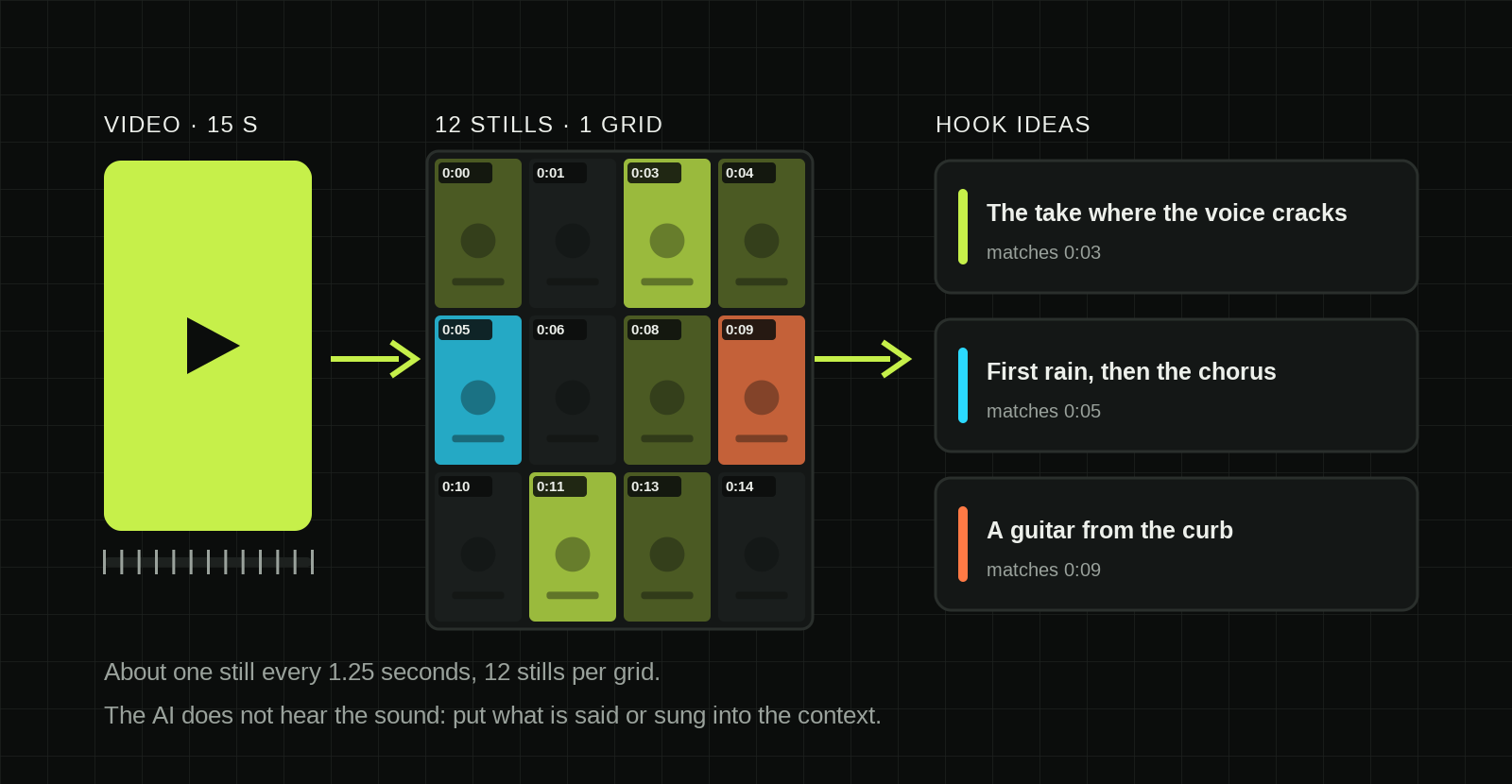
Which images the AI gets depends on what you ask ideas for:
| You get ideas for … | The AI sees |
|---|---|
| one specific video (choice “For: Video 2”) | all stills of that video |
| “All videos” of a campaign | one grid with 12 stills per video, up to six videos per request |
| a single order | one grid of stills per video |
Under “What the AI sees” you can look at the grids yourself. The AI does not hear the sound. It only knows what is said or sung if it appears as text in the picture or if you write it into the context.
Step by step: hook ideas that fit the video
Get hook ideas with stills
- Upload your videos. In a campaign or a single order. Below them you see the section “🎬 AI sees the whole video”. Without brands, “Show still frames” lets you see in advance which images the AI gets. You don’t have to: reelbatch takes the stills for the hook ideas on its own.
- Let the AI recognise the brand (with brands only). If you have brands, the button says “Let AI look”. reelbatch then takes the stills and the AI suggests the matching brand, more on that in the next section.
- Open the text step. Tick “Add text to the video” and tap “💡 Get hook ideas”.
- Pick a video under “For”. In campaigns you get the most precise ideas when you pick a single video. The AI then sees all of its stills, and whatever you keep only applies to that video.
- Add context (optional). Under “Context for the AI” write what the pictures cannot show: the song title, what is being said, the occasion. For example “chorus, lyric: ‘I’m staying’, release on Friday”.
- Tap “Generate ideas” and swipe. Right to keep, left to discard. Read every idea once and check that it is true.
The AI recognises the brand
If you work with brands (from the Standard plan), the AI compares the video with your brands: name, Instagram handle and “Style & tone”. The file name goes along as a hint too. You start this per video with “Let AI look”. If you tick “Let the AI look at new videos automatically and recognise the brand”, it happens for every new video on its own. It starts unticked. You then see for each video:
- “AI suggestion: name” with a percentage and a short reason. From 60 percent the suggestion is preselected. If it is right, tap “✓ Correct”.
- “Not sure – please choose.” Below 60 percent you decide. Choose the brand and tap “Use”.
- Wrong suggestion? Choose the right brand or “None of these brands”. The AI remembers the correction as a short example for future videos.
Each suggestion comes with a short description: “The AI sees: …”. The recognised brand is preselected for the order. With it, its “Style & tone” and its earlier hooks go into the hook ideas as examples. If your videos belong to different brands, reelbatch points this out, because an order has exactly one brand.
Brand recognition works up to 30 times a day. Below the tick box you see how many are left today, for example “28 of 30 brand checks left today.” Once the limit is reached, simply choose the brand yourself. Without brands there is no brand recognition. The hook ideas still use the stills in the same way.
File names that say something
IMG_4711.mp4 tells nothing, luna-summer-snippet-chorus.mp4 does. A clear file name helps with the brand and helps you find the video again later.
Send a screenshot (optional)
Sometimes a picture says more than any context: the cover of your new single, the flyer for a show, a product photo or the template the video was shot from. For that, the hook ideas section has “🖼 Send a screenshot (optional)”.
Send a screenshot
- Open “Get hook ideas” and tap “🖼 Send a screenshot”.
- “Choose screenshot”. PNG, JPEG or WebP up to 5 MB. You see a small preview, and “✕ remove” takes the image out again.
- Tick the box. “I agree that this screenshot is sent to our AI service only for the hook ideas.” Without the tick nothing is sent.
- Tap “Generate ideas”. The image only goes along with this one request.
Use your own material or material you are allowed to use. The screenshot is information for the AI, not a template to copy.
New principles: how the AI writes hooks now
The AI used to have a list of fixed patterns and took turns with them. Now it gets principles on how a hook works when it sits on screen as text for one or two seconds. The key ones, in plain words:
- Curiosity over clickbait. A hook opens a question that the video answers. “Wait for the end” only if the end is really worth it.
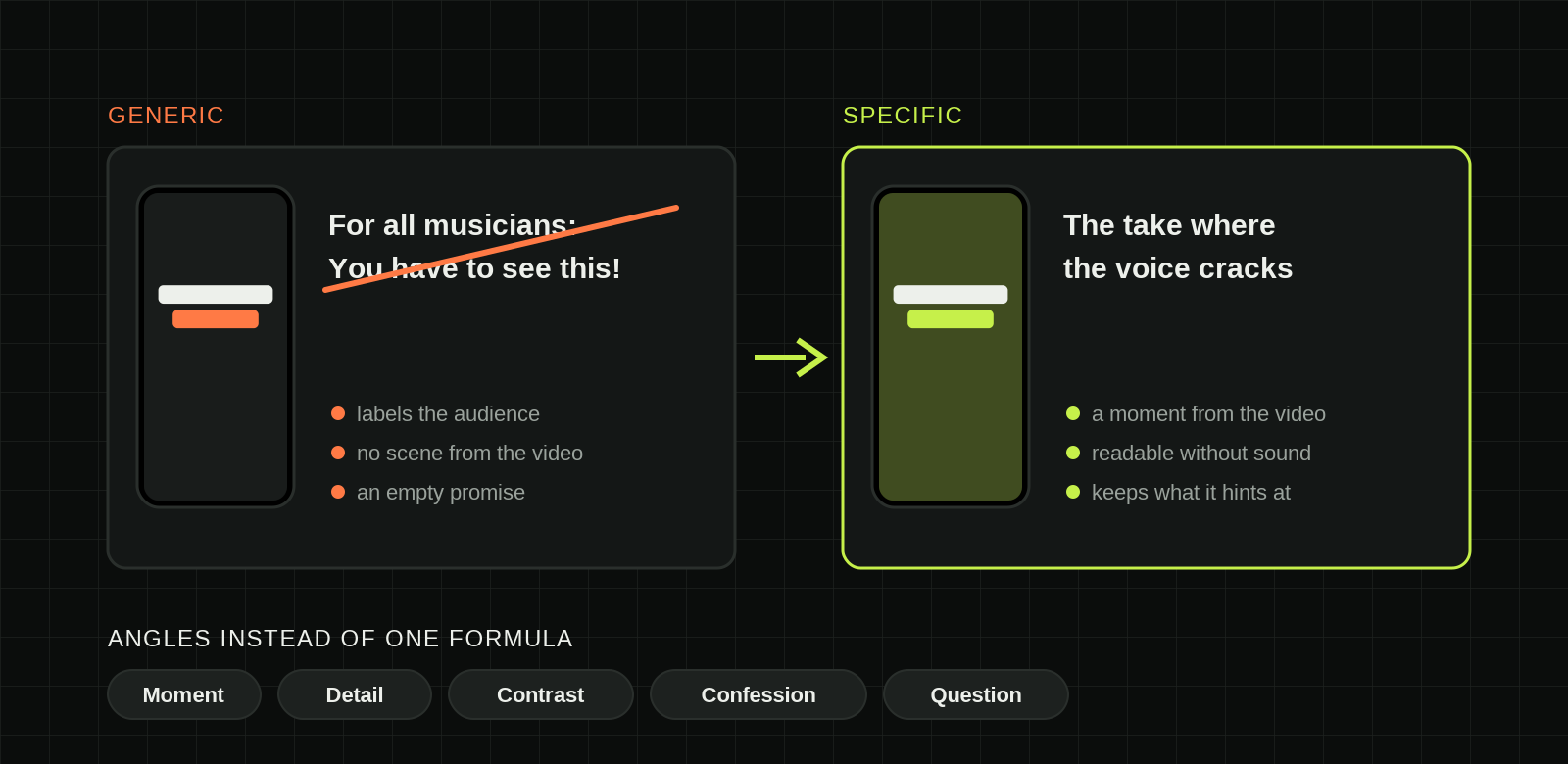
- Specifics over categories. A moment, a place, an object from the video. “The take where the voice cracks” instead of “studio life”. If there is no such detail, the AI does not make one up.
- Don’t label the audience. No “For all musicians …”, no “Hey guys”. Write as if you were sending the video to one particular person.
- Clear at a glance. Short words, one thought, usually three to eight words.
- No fixed formula. First understand what this exact video is about, then choose the angle. The ideas differ in their angle, not just in their wording.
The fixed rules still apply: no promises of reach or followers, no made-up numbers, nothing the video does not deliver. The stills and the principles work well together, because the AI now has real details it can be specific about. Ten basic patterns for writing hooks yourself are in hooks for Instagram reels.
How to check a hook, whether it is yours or the AI’s
Captions know your video too
If you let the AI write captions for your order when it starts, it also gets one grid of stills per source video. How to adjust captions and copy them in the download folder is explained in edit and copy captions.
What happens to your images
Short and honest, here is what happens technically:
- Stills are created in memory, straight from your uploaded video. No image file is written.
- They only go to our AI service for this purpose: looking at the video, hook ideas and captions.
- The images are not stored, neither as files nor in the database. For “New ideas” and “What the AI sees” they stay in memory for 20 minutes at most, then they are gone.
- Only the result is stored, as text: for brand recognition, the short description, the brand suggestion and your confirmation or correction.
- The screenshot is checked, scaled down and sent without camera data or location for this one request only. It is not stored either.
- Text in an image is never an instruction for the AI, only content. It does not describe people by their looks, only by what happens.
More on this is in the privacy policy, section 8.
Common mistakes and how to avoid them
| Mistake | Better |
|---|---|
| Leaving the context empty although someone speaks or sings in the video | Write the key line or the song title into the context, because the AI does not hear sound |
| Choosing “All videos” although the videos are very different | Pick one video under “For”, then the AI sees all of its stills |
| Accepting the brand suggestion without checking | Read the percentage and the reason, and correct wrong suggestions so the AI learns |
| Sending someone else’s post as a screenshot to copy it | Send your own material: cover, flyer, product photo, a frame from your video |
| Keeping ideas without reading them | Check every idea: is it true, does it fit the video, does it sound like you? |
Frequently asked questions
Does the AI hear the sound of my video?
No. The AI only gets stills. It only knows what is said or sung if it appears as text in the picture or if you add it under “Context for the AI”.
Are my videos or images stored?
The stills and the screenshot are not stored. They are created in memory and are gone after 20 minutes at most. Only the result of brand recognition is stored, as text: the short description and the chosen brand.
Does this work without brands?
Yes. Without brands there is no brand recognition, but the hook ideas use the stills in the same way. “Show still frames” shows which images the AI gets. Brands are available from the Standard plan.
Do I have to tap “Let AI look” for the hook ideas to get the images?
No. reelbatch takes the stills for the hook ideas on its own when you tap “Generate ideas”. You only need “Let AI look” for brand recognition. The box “Let the AI look at new videos automatically and recognise the brand” starts unticked.
Do I have to send a screenshot?
No, the screenshot is optional. The stills from the video are usually enough. A screenshot helps when something important is not visible in the video, for example the cover of the single.
Why does the brand say “Not sure – please choose”?
The AI is less than 60 percent sure, for example because two brands look similar. Choose the right brand and tap “Use”. The correction helps the AI with future videos.


