Reels cover image: plan the first frame
Reels cover image: how to plan the first frame, check it in the text editor, see it in the profile grid and set the switches in reelbatch the right way.

The cover image is the still that shows your reel on your profile, and the first frame often decides whether anyone stops at all. You don't need to be a designer for this. You need a clear choice of frame, a look at the edges and the right settings, so the frame stays the way you planned it in every version.
This article shows where the first frame matters, how to pick it on Instagram and what you set in reelbatch for it.
Where the first frame matters
A reel shows up in several places before anyone watches it to the end:
- In the feed and the Reels tab the start plays, often without sound. The first line and the first picture decide whether someone keeps scrolling.
- In the profile grid the cover image appears. There, a visitor sees your video before opening it.
- In the editor and the preview you see your video as a still. This is your checkpoint before you post.
These stills are not always the same, so it helps to keep all three in mind.
Choosing the cover on Instagram
When you publish, Instagram usually offers to pick a still from your video as the cover. You can often change it later in the editing view. What the choice is called and how it looks changes with app versions, so check it on your phone before you settle on a routine.
Pick a frame that works without sound. A clear subject, a person or product in the middle and a picture that shows something before the text work best. A blurred transition or a black frame is usually a poor cover.
The first frame in reelbatch
reelbatch changes your versions slightly, and the very first frame can be affected too. Three places matter:
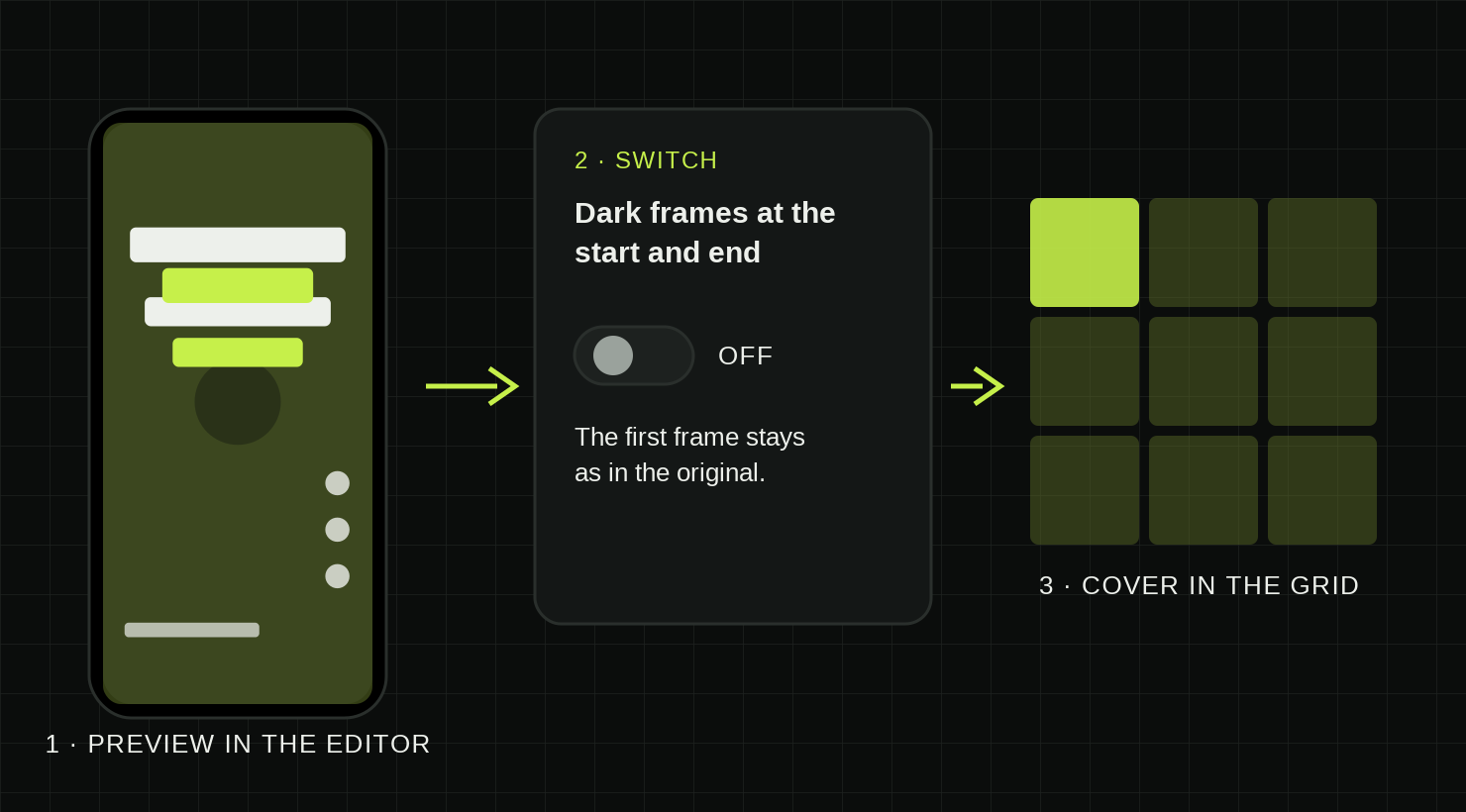
- Preview in the text editor. The preview shows your text on a still frame of your own video. If you have several videos, you choose which one provides the background. That way you see how text and picture work together before you release anything. Details are in Add text to a reel.
- Dark frames at start and end. This change adds very short, dark single frames at the very beginning and end. If the very first frame is your cover, switch it off in the expert settings. Then every version starts with the first frame of your original.
- Zoom and framing. These move the crop slightly. If your cover should look exactly like the original, switch this change off too.
The settings apply to all versions of this order. What you switch off stays as in the original in all versions.
How to proceed
- Pick three to five stills from your video. Choose moments with a clear subject.
- Place your hook as text in the preview and check that it reads well on the picture.
- Keep the text in the safe area, so it isn't cut off in the grid. How to do that is explained in Instagram Reels safe zone.
- Switch off the changes at the start if the first frame should stay unchanged.
- Choose the cover when you post, and check it on your phone beforehand, the way it will look in the grid.
Common mistakes
- The cover is a transition. The picture is blurred or caught mid-movement, so the grid looks empty.
- Text at the top or bottom edge. It gets cut off in the grid. Keep key words in the middle.
- Forgetting the changes. Dark frames at the start make the cover look darker in every version than in the original.
- Testing too much at once. If you change the cover, the hook and the music together, you won't know what worked. Test one thing at a time, as described in Test trial reels.
Frequently asked questions
Does reelbatch pick the cover image automatically?
No. reelbatch doesn't set a cover image. You choose it when you post in Instagram. reelbatch only makes sure the first frame of your versions looks the way you set it.
Do my followers see the cover of trial reels?
Trial reels don't appear in your profile grid until you share them with your followers. More about this in What are trial reels on Instagram?
Why does my first frame look dark?
The change “Dark frames at start and end” is probably running. It adds very short, dark single frames at the very beginning and end. Switch it off in the expert settings if the first frame should stay as in the original.


