Save reelbatch as an app on your phone
How to add reelbatch to your home screen on iPhone, iPad or Android: the steps in Safari and Chrome, your icon and your personal link.

The fastest way to open your area at reelbatch is as an app. One icon on your home screen, one tap, and you are in, without searching for the link in an email. Setting it up takes a few minutes and costs nothing. This article shows the steps for iPhone, iPad and Android, how to choose your icon and what to keep in mind about your personal link.
First: open it in the right browser
Open your personal link in Safari on an iPhone or iPad, or in Chrome on Android. The steps do not work from the Instagram or mail app. If you are in another app, tap “Open in Safari”.
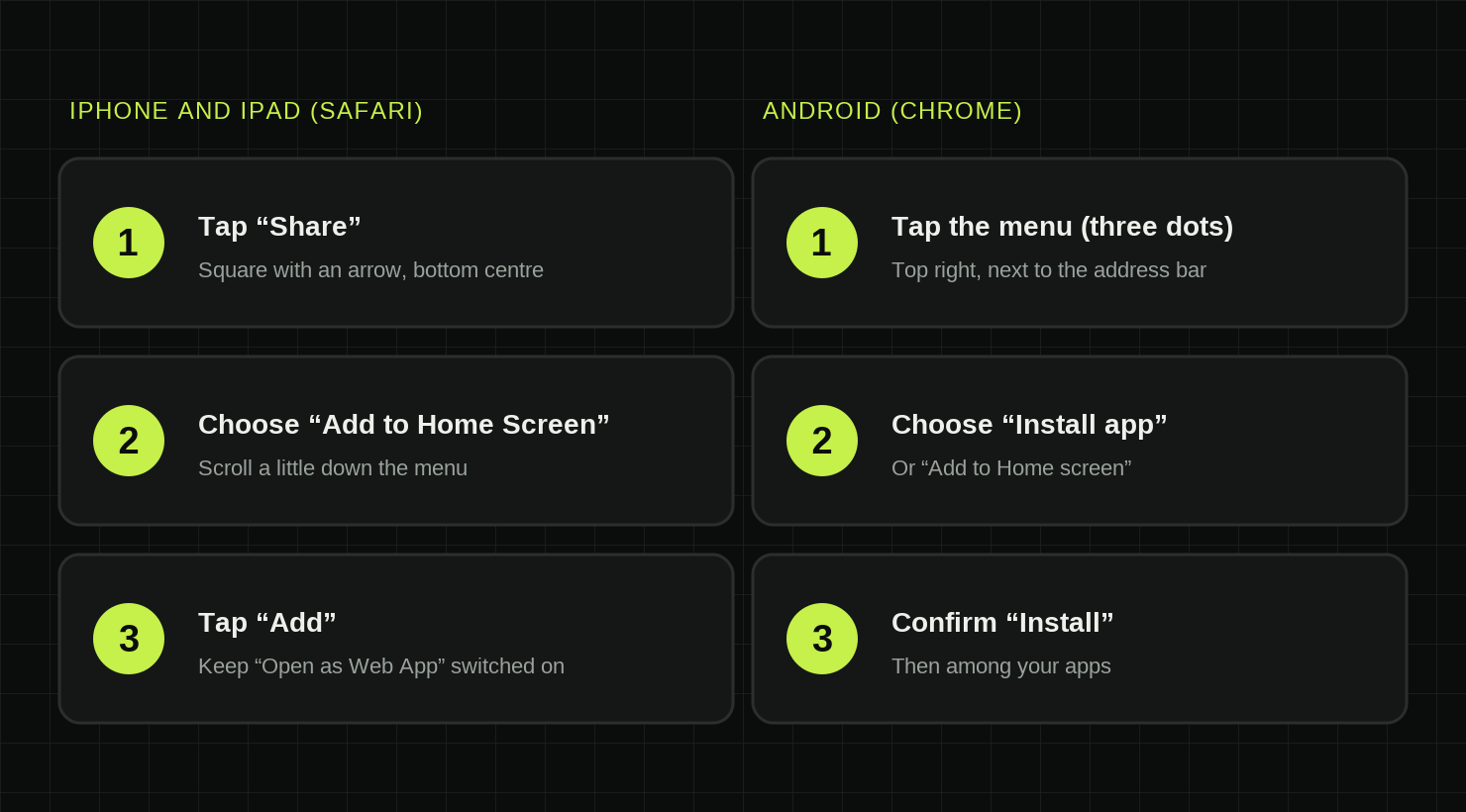
iPhone and iPad (Safari)
- Tap “Share”. It is the square with an arrow pointing up, at the bottom in the middle. On an iPad the button sits at the top right.
- Choose “Add to Home Screen”. Scroll down a little in the menu until the entry appears.
- Tap “Add”. Leave “Open as Web App” switched on. reelbatch is then an icon on your home screen.
Android (Chrome)
- Tap the three dots (⋮) at the top right, next to the address bar.
- Choose “Install app”. If the entry has a different name, it is sometimes called “Add to Home screen”.
- Confirm with “Install”. reelbatch then appears among your apps and on your start screen.
Choosing your icon
In the menu you will find the page “Home screen”. There you set your icon. There are four versions: dark with green dots (the default), green, light and outline. The choice applies to your access.
Good to know: an iPhone only reads the icon at the moment you add reelbatch to the home screen. If you choose a new icon later, delete the old shortcut (press and hold the icon, then “Remove Bookmark”) and add it again with the steps above. On Android the icon usually changes after you install it again.
The note on your overview
Your overview shows a small note “Add reelbatch to your home screen”. It only appears in the normal browser on a phone or tablet, not in the installed app. You can close it with the cross. It then stays hidden in that browser.
The note leads to the page with the steps, with a picture for each tap. The same page is also in the menu under “Home screen”, if you have closed the note.
If it does not work
If you cannot find “Add to Home Screen” or “Install app”, the browser is usually the reason. Open the link in Safari or Chrome, not in the Instagram or mail app, and try again. On an iPhone it also helps to look at your home screen: if reelbatch is already there, remove it and add it again.
You can also manage without an icon. A bookmark in the browser is enough. Your overview tells you so yourself: “Tip: save this page as a bookmark or to your home screen.” The icon has the advantage that one tap takes you straight into your area.
Keep your link safe
Your link is your personal access. So do not pass it on. If you get a new phone, set up the icon once more. The link stays the same.
Quick check before you start
- Did you open the link in Safari or Chrome, not in the Instagram or mail app?
- On an iPhone, is “Open as Web App” switched on when you tap “Add”?
- After any change, did you add the icon again?
To see how you can use your area in general, read the reelbatch guide. After setting up, it is worth a look at Post reels over several days, because there you see each day what is due.
Frequently asked questions
Do I need an App Store account?
No. You install reelbatch directly from Safari or Chrome. You do not need an App Store or Play Store account for it, and it costs nothing.
Do I lose anything if I do not install the app?
No. The link in the browser works just the same. The app is only a shortcut to your area. All orders, folders and videos stay the same.
Why don’t I see the note?
The note only appears in the normal browser on a phone or tablet. reelbatch does not show it in the installed app or on a computer. Even if you have closed it, the page with the steps stays available through the menu.


