Export trial reel results from Meta Business Suite
Export your reel numbers as a CSV from Meta Business Suite and import them into reelbatch: menu path, columns, matching trial reels, common pitfalls.

You don’t have to type in the numbers of your trial reels. In Meta Business Suite you export your posts as a CSV file, upload it to reelbatch under “Results”, check in a preview which row belongs to which video and import the numbers with one click. reelbatch does not connect to your Instagram account and does not fetch anything from Meta, you only upload the file.
Which metrics exist and how to read them is explained in how to analyse trial reels. This article is about getting the numbers from Meta into reelbatch.
As of
Researched on 30 September 2026. Meta names menus and columns differently depending on version and language and keeps changing them. The steps below describe the usual way. If a button is called something else for you, look for a label with the same meaning.
The way in four steps
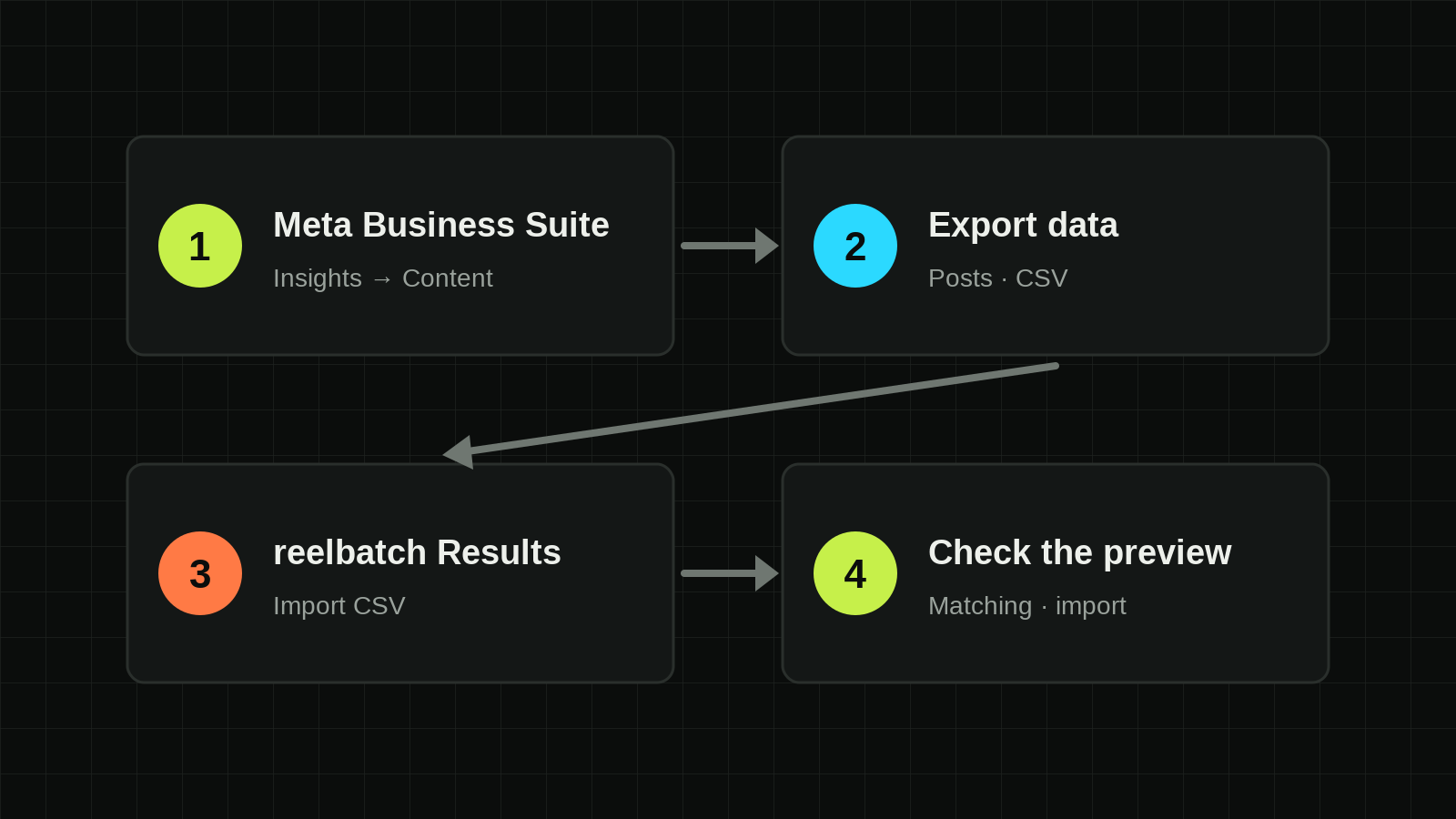
Export and import reel numbers as CSV
- Open Meta Business Suite. On a computer, go to business.facebook.com and pick your Instagram account at the top. The export is usually not available on your phone.
- Insights and Content. Click “Insights” on the left and then “Content”.
- Export data. At the top right, click “Export data” or the export icon with the arrow pointing down. Pick a date range that covers all posting days of your campaign. Choose “Posts” as content (not stories) and CSV as format. Then click “Generate” and download the file.
- Import into reelbatch. In your customer area, open “Results”, click “Import CSV”, pick the order and upload the file.
- Check the preview and import. reelbatch suggests a video for every row. Fix anything that doesn’t fit and tap “Import matched rows”.
Which columns are in the file?
Meta does not publish the exact column names. In the English version of Meta Business Suite they look roughly like this:
| What | Typical column names |
|---|---|
| Post identifier | Post ID |
| Link | Permalink |
| Published | Publish time |
| Kind of post | Post type |
| Views | Views |
| Accounts reached | Reach |
| Likes | Likes, Reactions |
| Comments, shares, saves | Comments, Shares, Saves |
| New followers | Follows |
reelbatch recognises the usual English names and their counterparts in the German version, whether the file uses commas or semicolons as separators and whether numbers are written as “12,400” or “12.400”. You see which columns were recognised in the preview under “Recognised columns”. If a column is missing, the field simply stays empty, and numbers you typed in are not deleted.
Impressions are not views
Older exports sometimes contain only “Impressions” instead of “Views”. That is a different metric, so reelbatch does not import it as views. In that case, export a more recent date range or enter the views by hand.
Can you spot trial reels in the export?
Honestly: it is unclear. Meta does not document whether trial reels appear in the export or whether they are marked as trial reels there. No separate column for it is documented anywhere, and as far as we know reels simply show up with the post type “Reel”. That can change at any time.
This is how reelbatch handles it:
- Only matched rows count. Only rows you match to one of your reelbatch videos are imported. Your other reels are left out.
- No images, carousels or stories. Rows with such a post type are skipped automatically.
- If there is a column after all: if the file has a column with “trial” in its name, reelbatch reads it and leaves out rows marked “no”.
If trial reels are missing from your export altogether, you can still use the Instagram app: open the reel, look at its insights and enter the numbers by hand under “Posted and numbers”.
How does reelbatch match rows to videos?
In this order:
- By link or post ID. If you added the link to the reel when ticking it off, or imported it before, the match is clear.
- By posting date. If you ticked a video as posted with a date, a row from the same day fits. Several on the same day go by time.
- By order. For the remaining videos of the chosen order, reelbatch takes the order of the day folders and numbers and lines them up with the posts in time order. These suggestions are marked “by order, please check”.
Add the link to the reel
After posting, copy the link to the reel (in Instagram tap “Share”, then “Copy link”) and paste it into reelbatch for that video under “Link to the reel”. Every later import is then clear, even if you post other reels in between.
Import several times: history instead of duplicates
You can upload the same or a newer file at any time. Existing entries are updated, never duplicated. Every import also saves the numbers of that day. If you import after 1, 3 and 7 days, for example, the “Results” page shows under “Over the days” how the numbers of your videos develop.
On the same page you see the values per video in posting order, your best videos and, depending on your plan, comparisons by original video, hook, look and strength. How to plan your next round from that is explained in review your campaign and plan the next round.
Numbers are a hint, not proof
Imported numbers also only show how your reels have done so far. Time of day, topic and chance always play a part. Compare groups and don’t decide based on a single reel.
Frequently asked questions
Does reelbatch keep my CSV file?
No. reelbatch reads the file, shows you a preview and keeps only the numbers of the rows you import. The preview is deleted after the import, at the latest after 24 hours.
Does reelbatch need access to my Instagram account?
No. There is no connection to Instagram or Meta. You download the file yourself and upload it again.
I can’t find the export. What now?
Menus are named differently depending on the version. In Meta Business Suite, look under Insights for “Content” and an export icon. If it doesn’t work, simply enter the numbers by hand, every field is optional.
Can I upload Excel files?
Save the file as CSV in Excel or Numbers first. reelbatch understands commas, semicolons and tabs as separators.


