Trial Reels calculator: how many videos you need
The reelbatch Trial Reels calculator shows you in a minute how many Trial Reels you need, how many videos make sense and which plan fits. With an example.

The calculator answers three questions: how many videos you need, how many versions each video gets and which plan fits your schedule. You enter four numbers and the result appears straight away. This article explains what the calculator works out, how to read an example and where its limits are.
The four fields
- Trial Reels per day (per account): 1 to 20.
- Days: how long the campaign runs, 1 to 30.
- Videos: different source videos per account, 1 to 60.
- Instagram accounts: the same plan for each account, 1 to 10.
The numbers apply per account. If you enter two accounts, the calculator adds them together for the total. It counts the videos per account.
What the calculator works out
Trial Reels per day multiplied by the days gives the total. With several accounts, the total is multiplied by the number of accounts. From this the calculator works out two things:
- The number of videos. A video appears at most three times on one day, and a video gets at most 30 versions. For a comparison, about 15 versions per video is a useful guideline. The app uses the same formula when it plans.
- The plan. It picks the smallest plan whose guideline covers the total.
An example
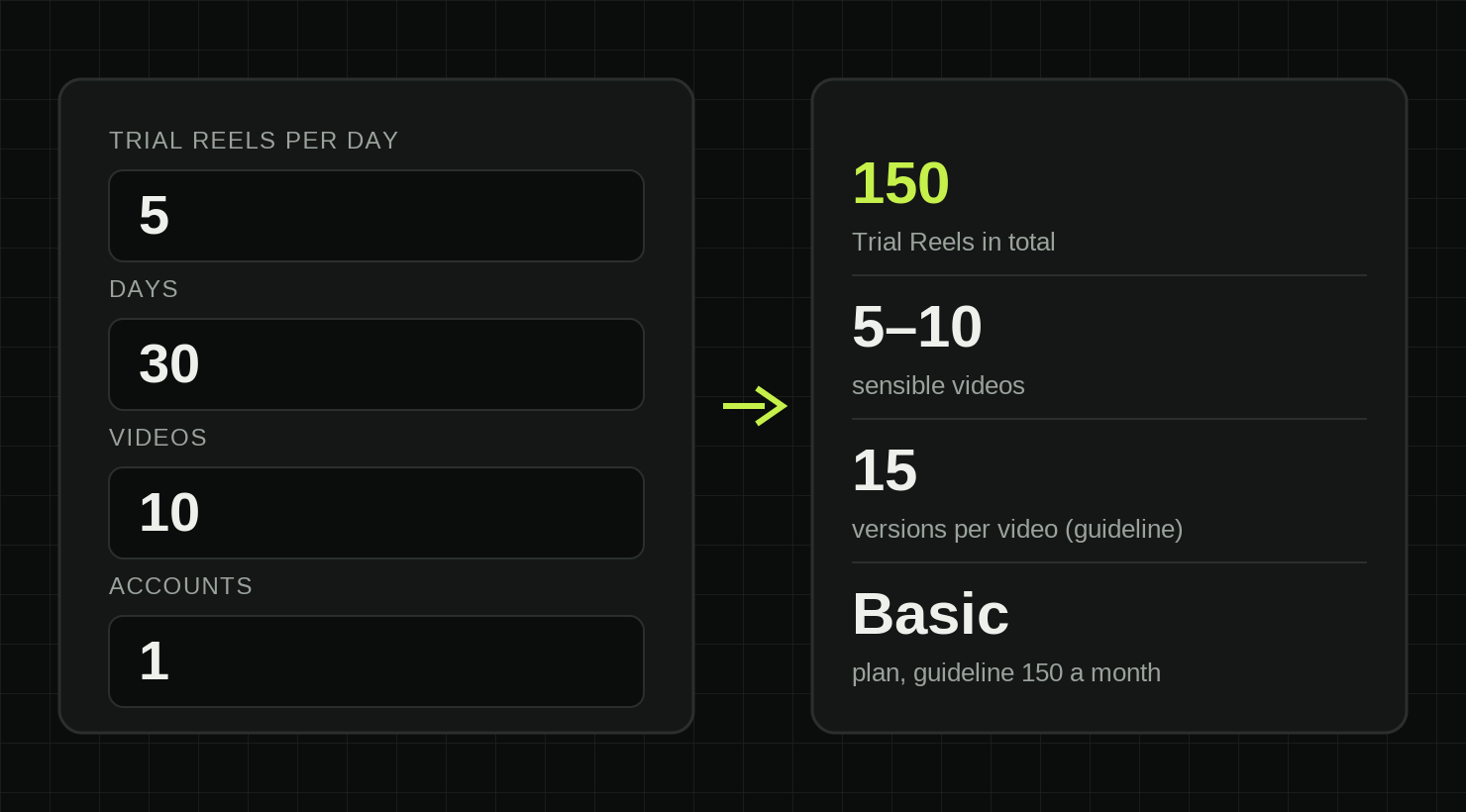
Say you want to post 5 Trial Reels a day over 30 days. That makes 150 Trial Reels. The calculator shows you:
- 5 to 10 sensible videos. With 5 videos, each gets 30 versions. With 10 videos, each gets 15.
- Plan Basic. The guideline is 150 Trial Reels a month. Your plan needs 150, so 0 are left over.
Illustration with sample numbers. Actual results vary.
When the amount grows, the plan grows too. If you plan 20 Trial Reels a day over 10 days, you reach 200 Trial Reels. That no longer fits Basic, so the calculator shows Standard with a guideline of 500 Trial Reels a month. 300 are left over. The videos then lie between 7 and 13.
With several accounts
If you enter two accounts, the calculator works out each account the same way. With 15 Trial Reels a day over 30 days, that is 450 per account and 900 in total. It counts the videos per account, so 15 to 30 videos per account. For 900 Trial Reels, the plan Double fits. It is meant for two accounts, its guideline is 1100 Trial Reels a month, so 200 are left over.
When the numbers do not fit
Under the result a line appears if something does not add up:
- “Too few videos”: The calculator tells you the minimum number. With fewer videos, one video would appear more often on a day than makes sense, or each video would get too many versions.
- “More videos than needed”: Then each video gets only a few versions. For a comparison, fewer videos with more versions are often enough.
- “Fits”: This shows when each video comes up every few days and gets enough versions.
What the calculator does not work out
The calculator only works out quantities and days. It says nothing about views, reach or followers. Whether a video works for people only shows up in a test with the numbers from your own account. You can read how to evaluate that in Evaluate Trial Reels.
How to use the calculator
- Open the Trial Reels calculator.
- Enter the days and the Trial Reels per day first.
- Then set the videos. The display shows you the sensible range.
- Only look at the plan once the numbers match your videos.
The free trial gives you 30 Trial Reels for an example campaign. You can read how to make good use of the trial in Make the free trial count.
Frequently asked questions
Do I need to sign in to use the calculator?
No. The page needs no sign-in and saves nothing in your browser. It only needs JavaScript so that the numbers update as you type.
Why does the calculator show “Custom”?
Then the total is above the largest guideline in the calculator. It then says: “Write to us, and we will find a suitable plan.” The agency plan is only available on request.
Does the calculator replace the campaign?
No. The calculator helps you plan the numbers. You create the campaign in the app afterwards. The steps are in Plan a campaign.


